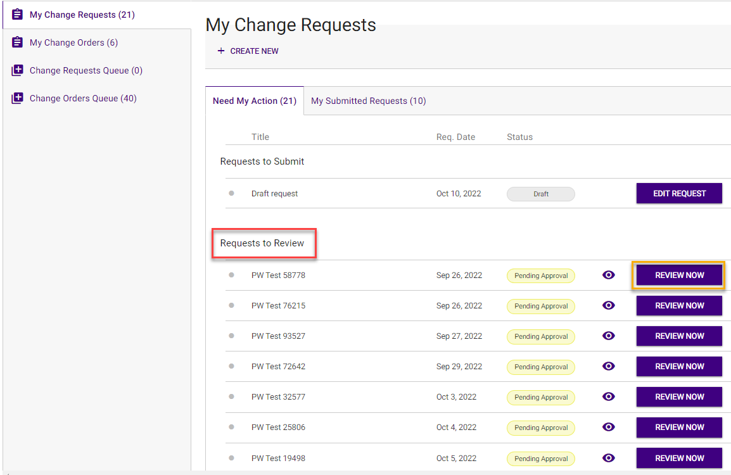
Requests that require your review will show up on Tasks page - My Change Requests tab under Need My Action
Click on the Review Now button to open approval page
Note: Requests to create new artifacts are automatically approved
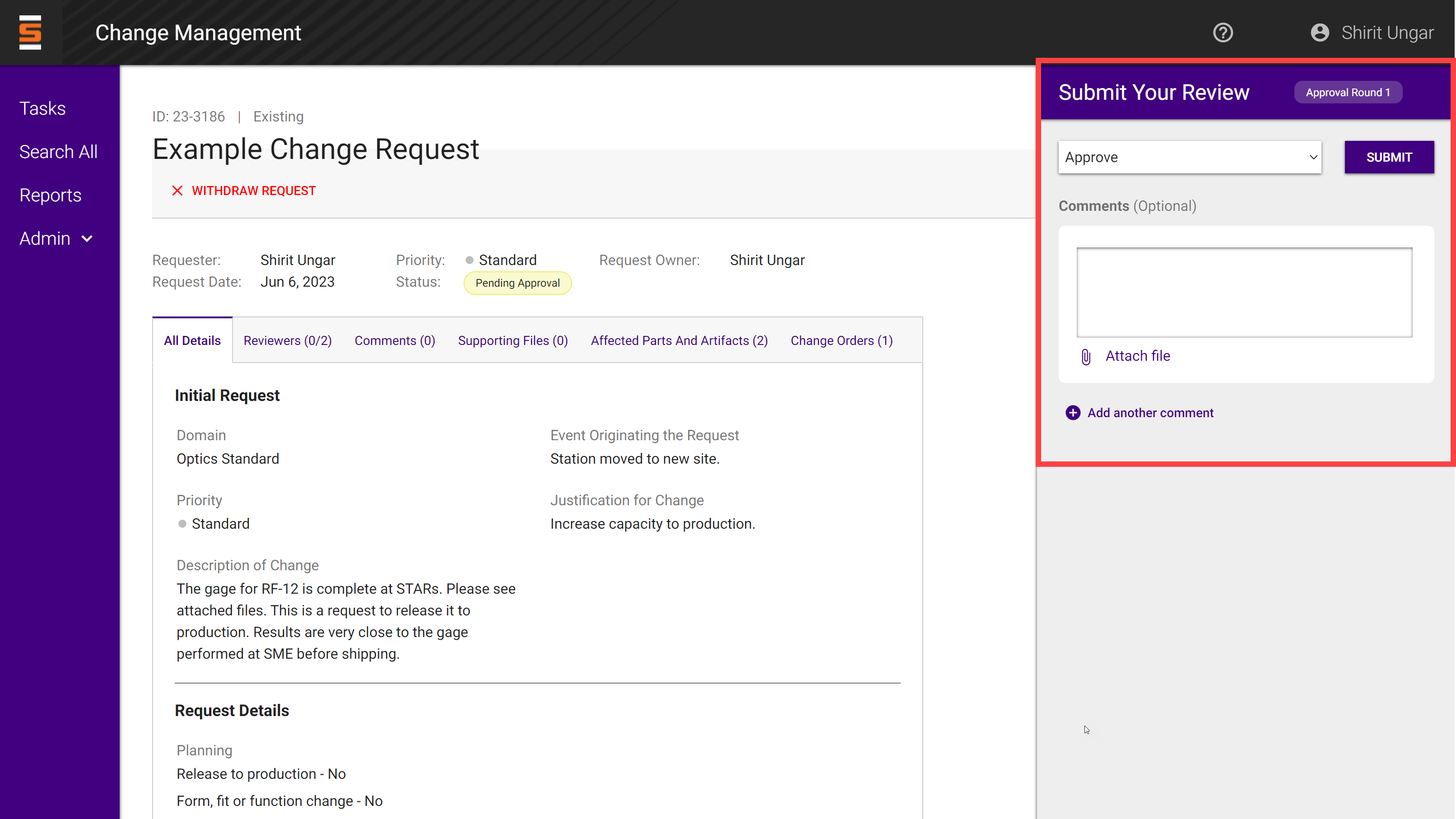
Approval Page
When you are in the domain's change request approval group, you will be requested to review the change request
You can approve or request additional info and send the request back to the request owner
Comments made will display below the review
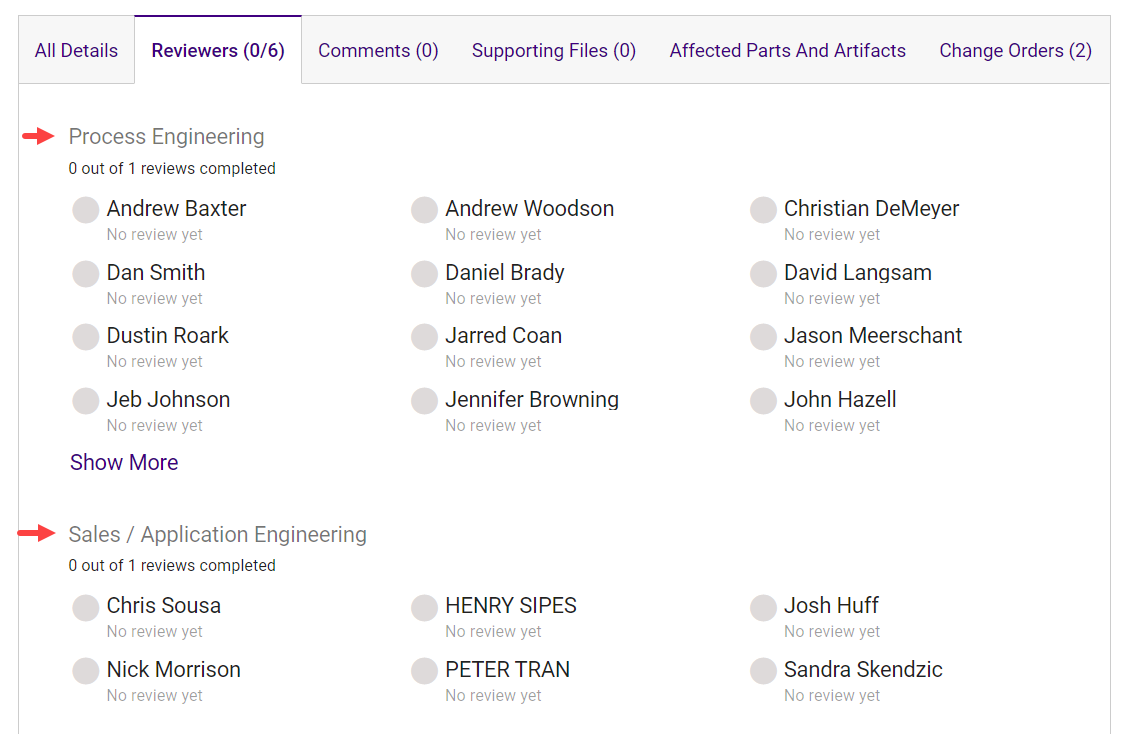
The Review Team will display the review status for each member in the review group
Adding Comments
You can provide comments back to the request owner for both approval and Request Additional Information review
A comment is required when requesting additional information
You can attach files to your comment. Files are versioned in the system
Click Add another comment to add additional comments
Click submit to send your review
Adding Attachements
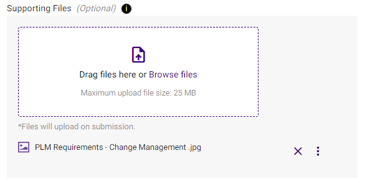
To add an attachment to the request, drag or select files.
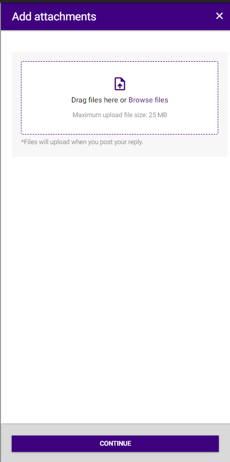
To add an attachment to a comment, click attach file and drag or select the file you want. Then click continue.
All files, whether added to the request or a comment will display on the change request
Replying to a Request Sent Back by Approver
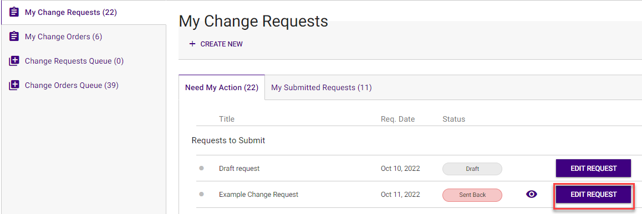
When an approver sends back requesting additional information, it will show up for the request owner on their Tasks page - My Change Requests tab under Requests to Submit
Click on the edit request to address comments from approver
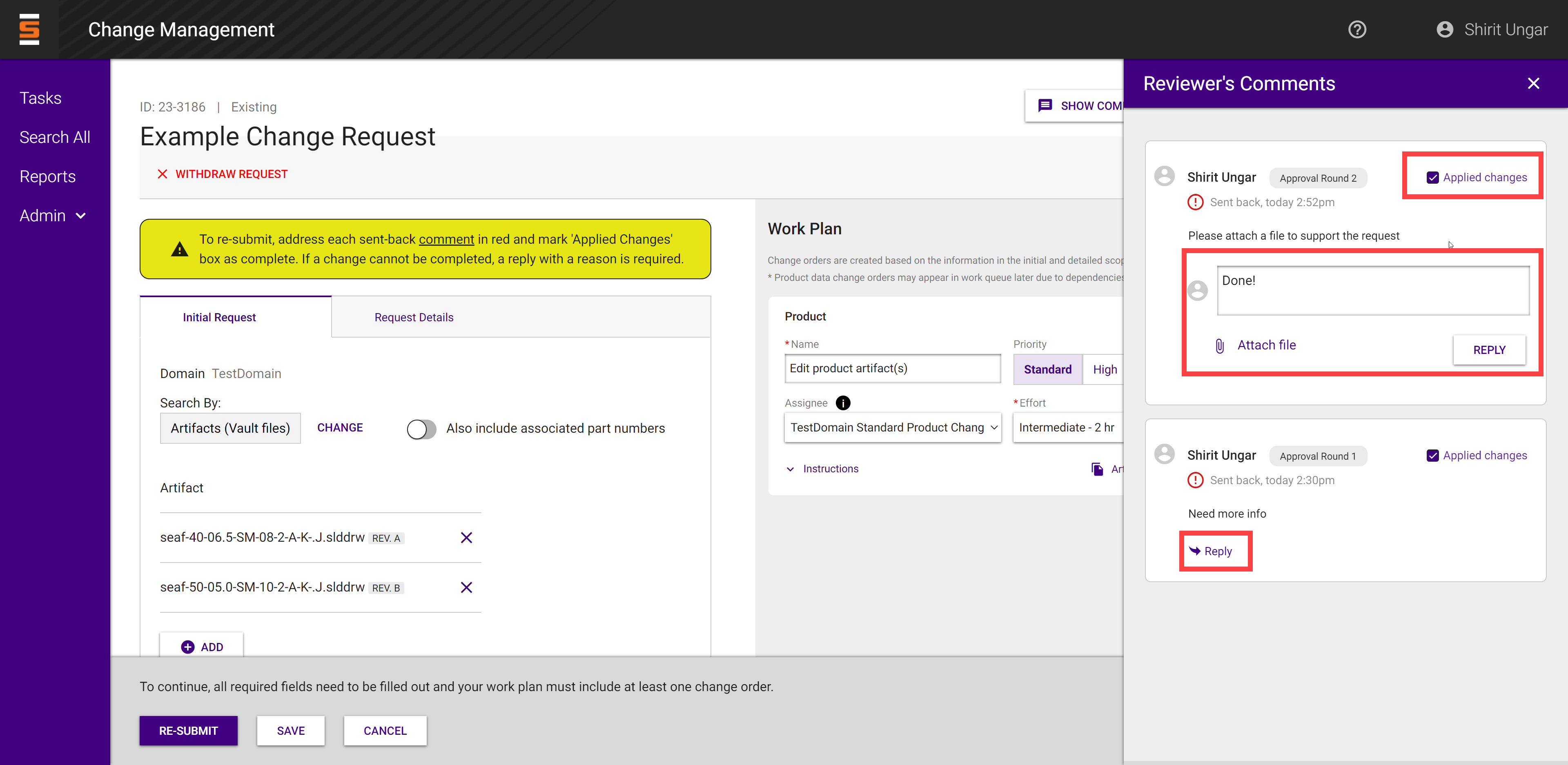
The request owner must address comments from the approver by editing the request and checking the applied changes checkbox or replying to the comment.
Click re-submit once you have done one of the required actions above
Approval Rounds
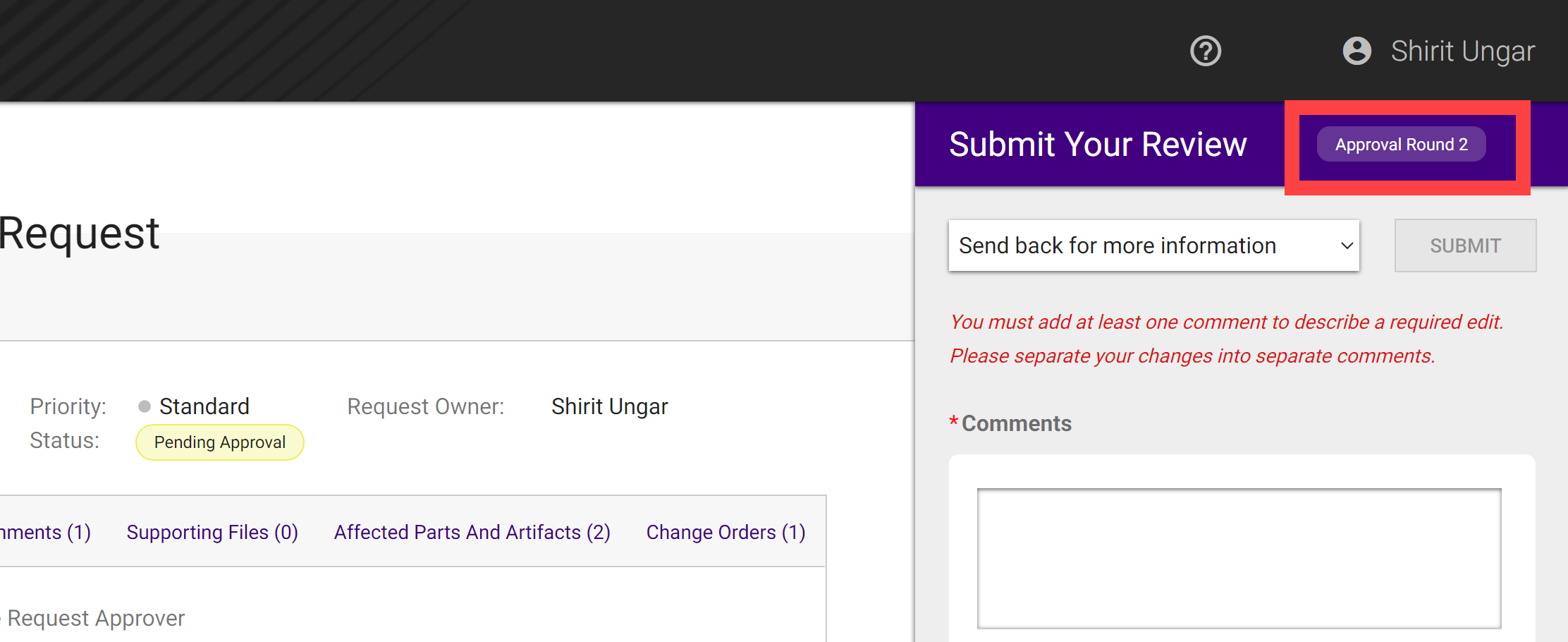
The system will track the approval round of the request. This is based on the number of times that the request has been sent back.
Each time one of the approvers sends the request back for additional information, the request is put on hold and no one else can approve/send back until the request owner has addressed the comments
Once they have resubmitted, the request goes to the next approval round and the approval starts over
Change Request Approval Thresholds
Each change request approval group can determine the percentage of approvals required to approve the request
Once the request approval threshold is met, the change request is marked WIP and the change order are ready for pick up
This eliminates the need for every reviewer to approve a request to move forward
The number of approvals required to meet the approval threshold will be shown under the approval group
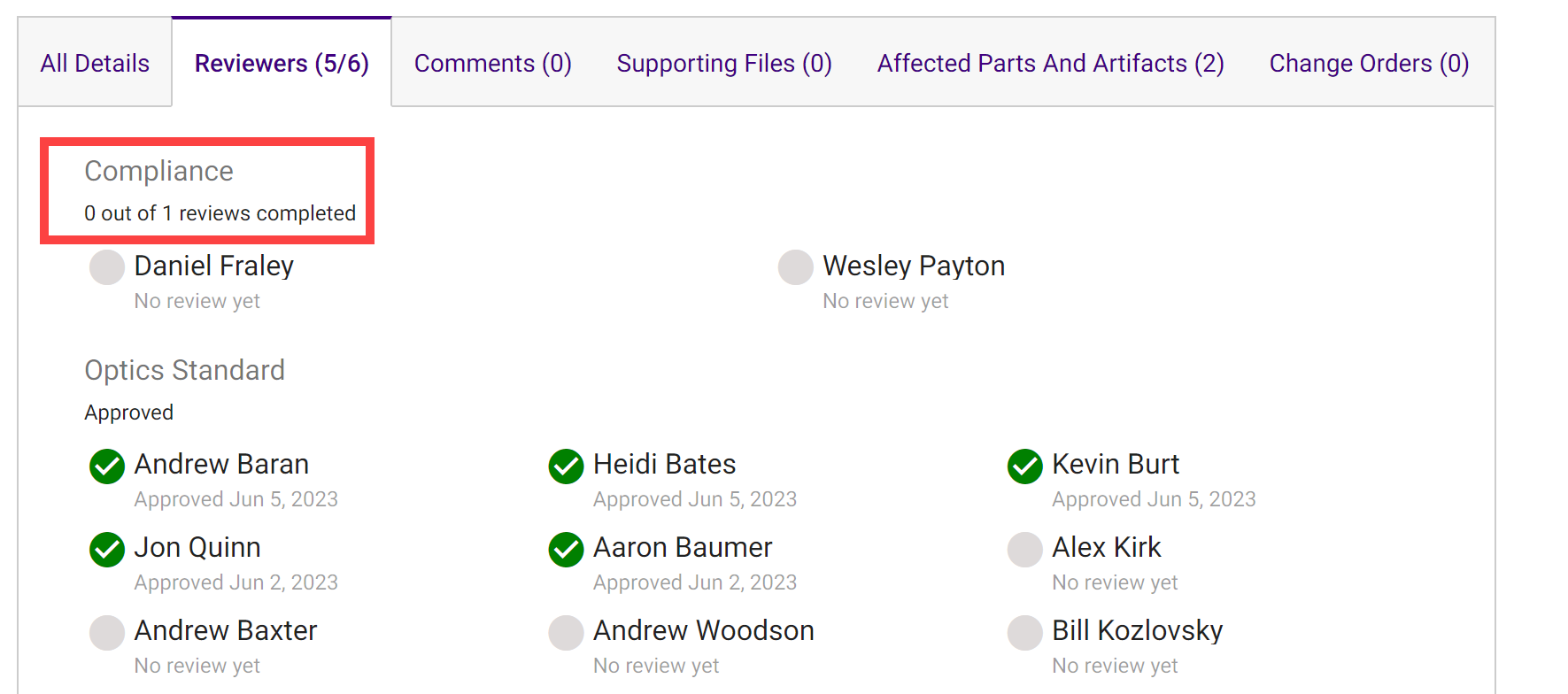
Note: MAP, TCD, ACD parts require an additional compliance approval
Functional Group Approvals
One person from each functional group must approve if the scope of the request requires an approval
The functional groups that were selected on the request will display on the Reviewers tab along with their approval status
If an approver is in multiple groups, they only need to approve once. That approval will count on behalf of all groups the user is in.