TEC
Temporary Engineering Change (TEC) are used to describe changes that we do not want to make on the print, but rather give an interim instructions for the operator to read on PAWS and Shop Floor Control (SFC). A TEC can be expired automatically on the date it was set originally, expire early, or get the date extended (using a new request). A TEC can also be linked to a permanent change if that change is needed on the print.
Create and Own the TEC request
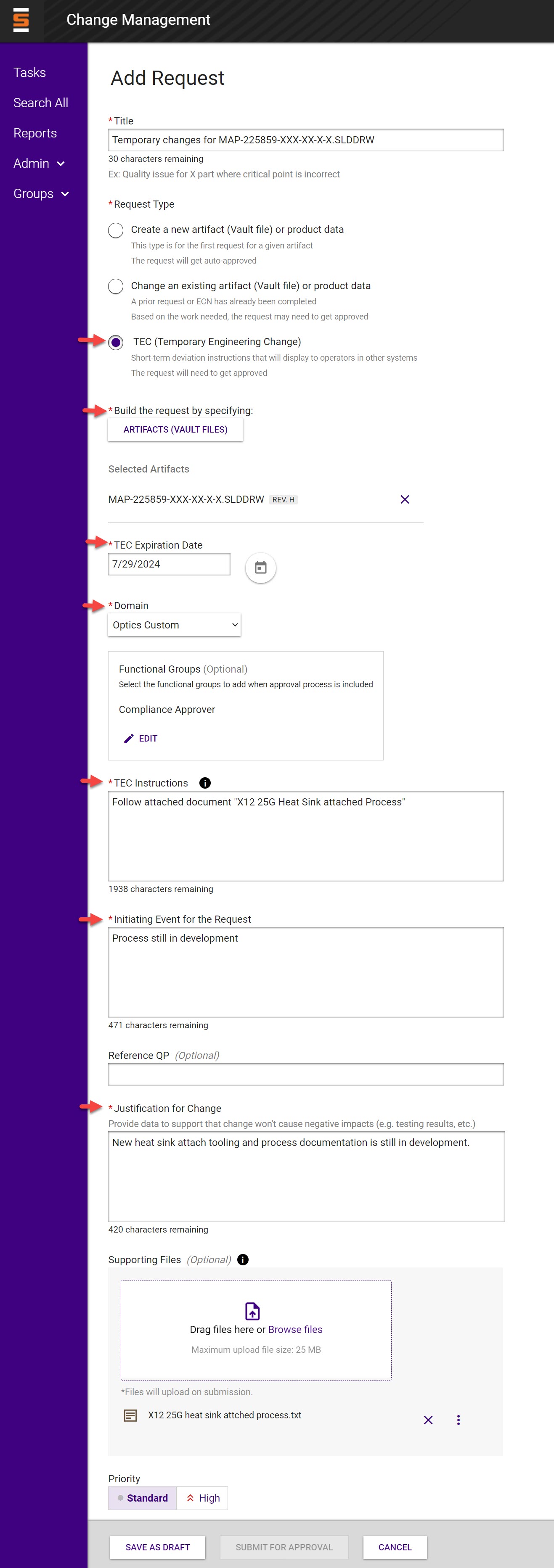
Create a TEC by selecting the TEC request type, filling all required fields and submitting for approval.
-
Required fields:
- Title
- Request type - select TEC
- Artifact
- TEC Expiration Date
- Domain
- TEC Instructions
- Initiating Event for the Request
- Justification for Change
-
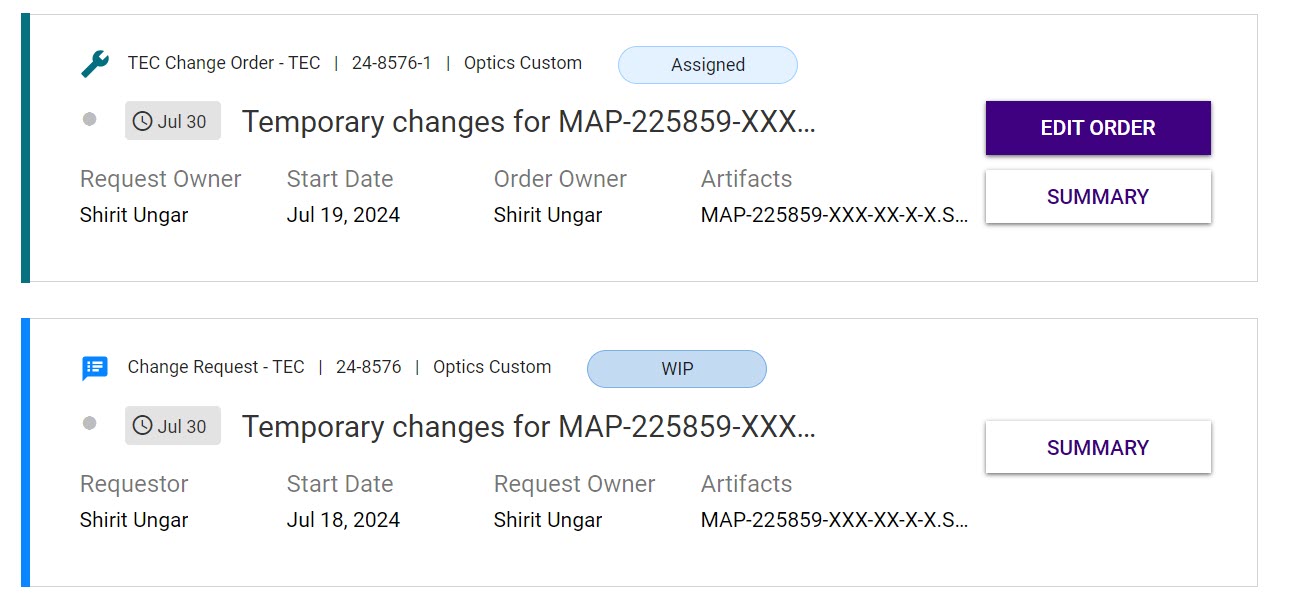
The requestor is automatically the request owner and the order owner.
-
The TEC request is sent for approval
-
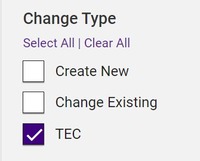
The TEC can be viewed on the search page and on the approval group's task page with the expiration date as part of the title.
Approving the TEC request
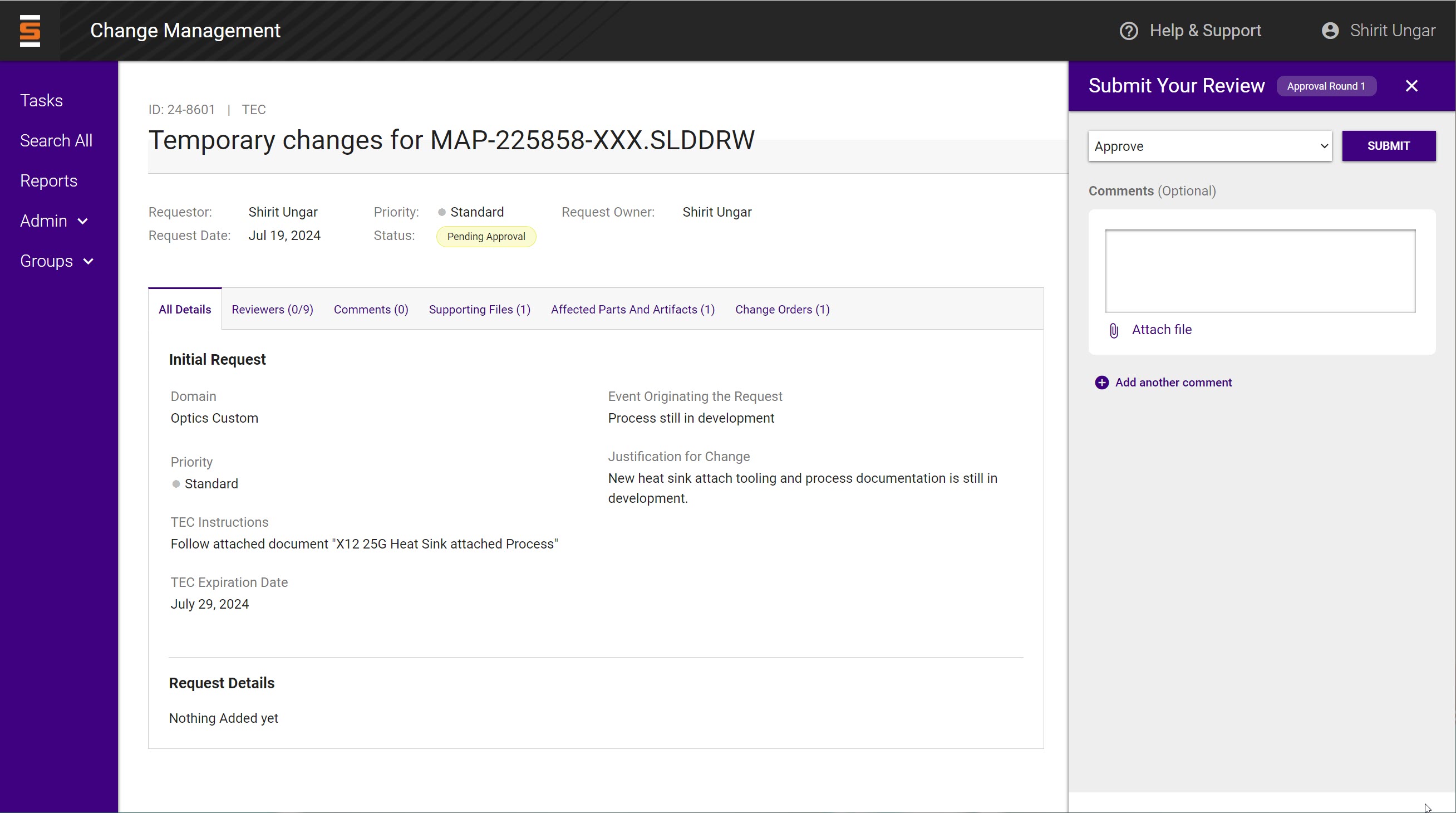
- When you are in the domain's TEC change request approval group, you will be requested to review the change request. Functional Groups may be required to approve as well.
- The approval process is the same as with other requests. For more info visit Approving a Change Request page
- Once approved, the TEC change order is immediately initiated and the request owner owns the order.
Owning the TEC order
- The change order owner can see the TEC change order in My Change Orders tab → under the Coming Up tab if the expiration is over 10 days. The order can be edited at any point.
- Once the change order is 10 days (or less) from the expiration date, the change order will show under Need My Action tab and the order owner will receive an email reminding them to review the TEC.
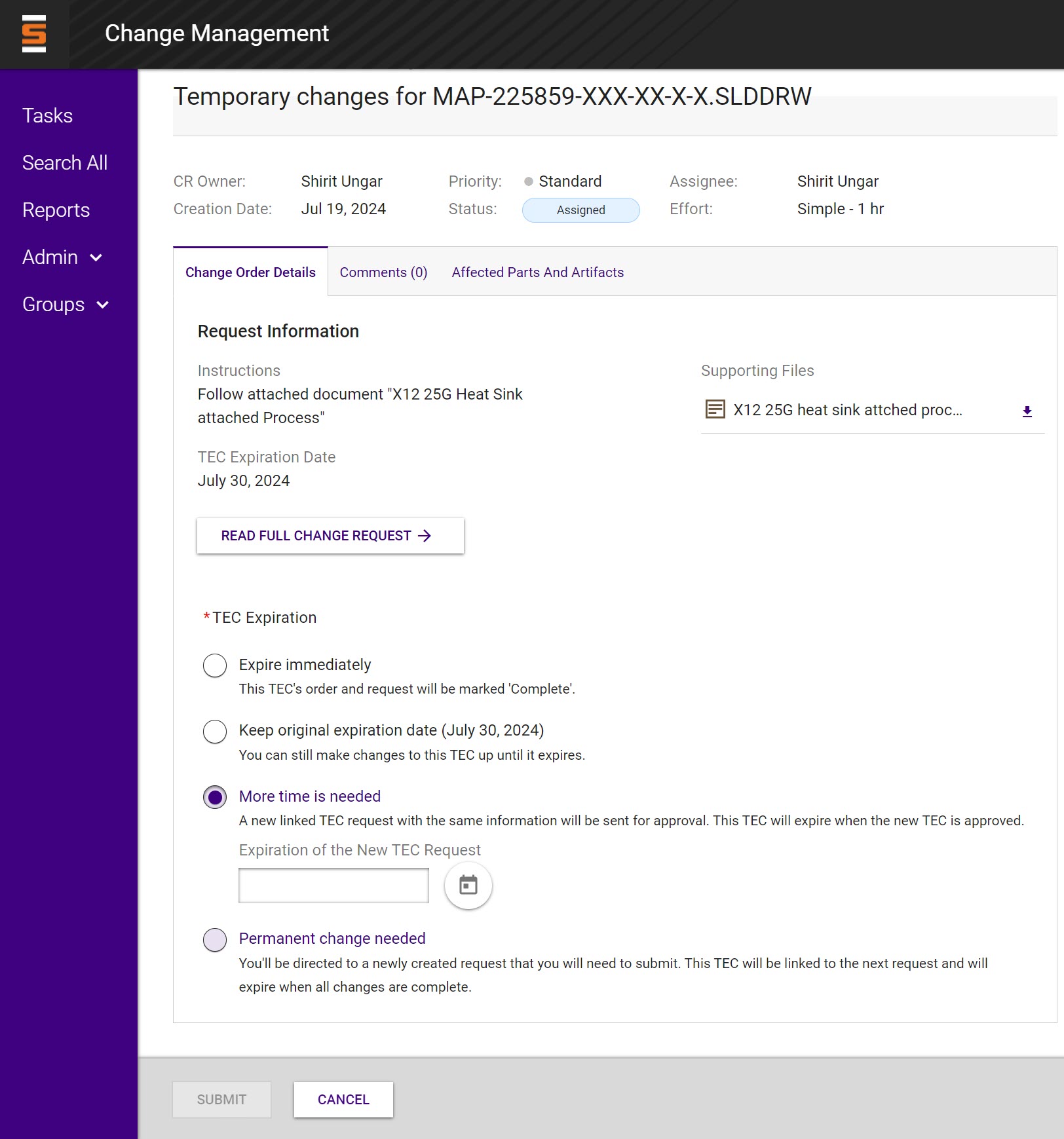
- The order owner must review the order and select one of the following actions
- Expire the TEC immediately. - If the TEC is no longer needed, submitting with this selection will complete this change order and the notice will no longer show to operators. the expiration date will be update to the day it was completed.
- Keep original expiration date - This selection is needed to show that the order owner did review and decided to keep the original date. If there is no selection and the order reaches the expiration date, the TEC message will be removed from the operator’s view, but there is a Power BI report that will display the orders that no action was taken on them.
- More time is needed - You will enter a new date and a new TEC will be created and sent for approval. The current TEC will expire once the new TEC is approved. The will be an indication on both TEC’s summary page to show the link between the two
- Permanent change needed- You will be directed to create a new change request which will be linked to the current TEC. Once the newly created request is completed, the TEC will expire.
- A TEC order owner cannot "release to queue", but an admin can re-assign to another person if needed.
- A TEC request and order cannot be withdrawn. Instead, you can expire it immediately and add a note using the Comments tab.
Active TEC
-
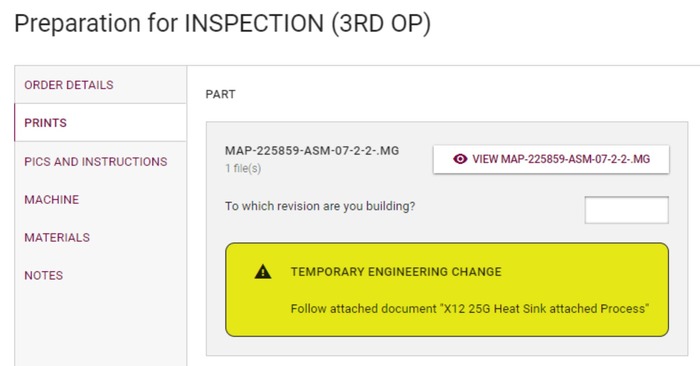
An active TEC will have the TEC instructions that were inputted in the request and display in PAWs and Shop Floor Control until it expires
-
You cannot change the copy of an active TEC.
-
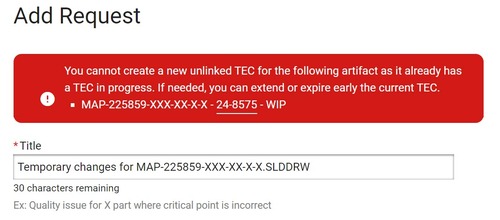
You cannot start a TEC request on an artifact that already has a TEC in progress as you might see the following error. If you must have a new TEC with new copy, expire the first TEC and create the new one which will go through the approval process.