PLM's
Apps:
Change Management Artifact Management Like Part Generator Bill of Material & Routing Series ManagementI have a request that is in the wrong domain and I want to change it. How do change the domain?
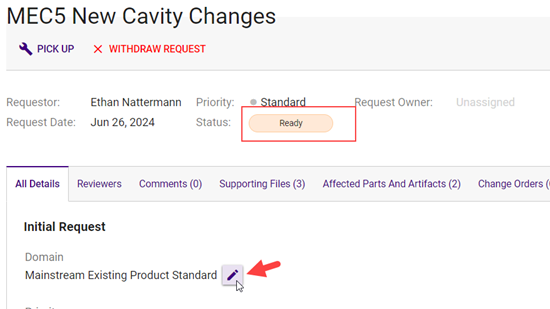
a. You can reassign the domain if the request is in Ready or Assigned status. If a change request is in progress, it is not possible to change the domain. You will need to withdraw the request and create a new one in the correct domain. If the request is in Assigned status, put the request back in the Change Request Queue by clicking on the button "Release to Queue". Now it is in Ready status and a Request Owner or a Domain Admin can click on the eye button to open the Change Request Summary page. Hover over the domain name in the All Details tab and click on the pencil. Select the correct domain in the right hand pop-out. Click save. The request will then be placed in the Change Request Queue of the new domain.
There is request that needs to be reassigned. How do I reassign a request to someone else?
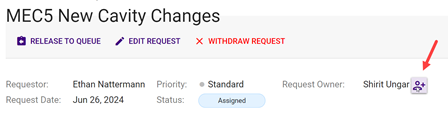
a. A request can only be reassigned if it is in the Ready or Assigned status. Once a request is in progress, the request owner cannot be changed; however, the initial reviewer can be changed on each change order. If the request is in Ready or Assigned status, a request owner or domain admin can go to the Change Request Summary page, hover over the Assignee field, click on the button and select a new owner from the right hand pop-out. Click save and the request will show up in the new owner's My Tasks.
The Request Owner/Initial Reviewer is out of the office and cannot approve my order. How do I change the Initial Reviewer on a Change Order?
a. If the Initial Reviewer needs to be updated, the drafter, request owner or a domain admin can update the initial reviewer on the Change Order Summary page. They can click on the Reviewers tab, hover over the Initial Reviewer and click the button to see the right hand pop-out and select the new Initial Reviewer.
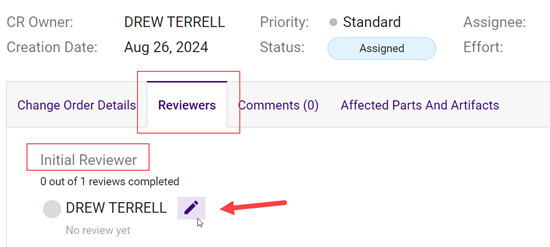
b. If the Initial Reviewer is not able to approve the order that is in Pending Approval status, currently the request needs to be withdrawn. Note: There is change in our backlog to allow the domain admin to edit the Initial Reviewer that needs to be prioritized by business stakeholders and worked on.
c. There is no way to change the Request Owner on a request once it is in progress. The Request Owner role does not interact with change orders. The Request Owner is defaulted to the Initial Reviewer on all Change Orders, but can be changed on each indidivdual Change Order.
I am a Request Owner but I am not the right person to review print changes. How do I change the Initial Reviewer on a Change Order?
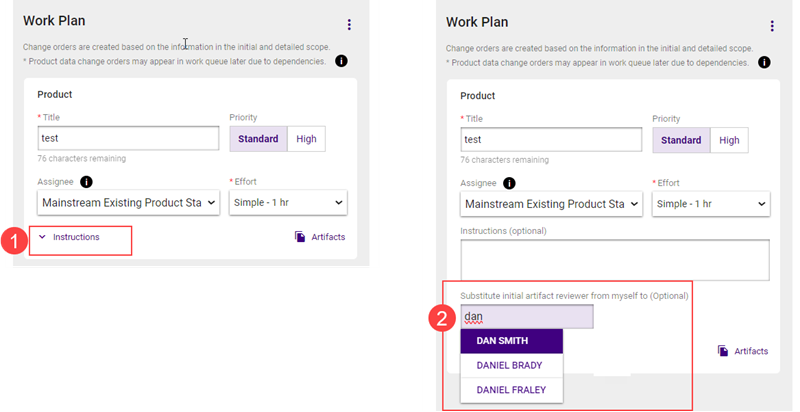
a. On the Change Order card, click the carat button to display instructions. There will be a field where you can search and select another Request Owner from the domain of the Change Request. Type ahead and select the new Initial Reviewer. They will be the one that approves the order first before it goes to the domain approval group.
I need to change the drafter or assignee of a Change Order. How do I change the change order owner?
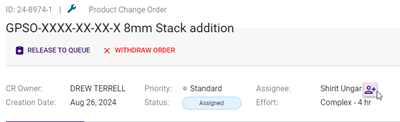
a. Open the change order and hover over the assignee field. Click the button and select a new owner from the right hand pop-out. Click save button. The Change Order will now show up in the selected user's My Tasks page.
I am unable to open files, pull in path or view file paths for Change Orders. What should I do?
a. See the Vault Assistant page under the Troubleshooting menu
I need access to a group because I am unable to interact with a Change Request or Change Order. How do I request access?
a. See the User Group Access page under the Intro menu
I accidentally withdrew a Change Request or Change Order? How do I reactivate my Change Request or Change Order?
a. There is no way to reactivate a withdrawn Change Request or Change Order. You need to create a new request
I have a lot of prints that need to be updated. Can I add all of the prints to the Change Request?
a. Yes, you can add multiple prints to a Change Request, but remember that they all must be approved at the same time. If there is different priority among the prints, you should split them out into separate requests. Also, if the print change need to be done by different drafters, you will also have to create separate requests.
I need to version a file on a request or submit a revised markup? How do I revision a file or add a revised mockup to the Change Request?
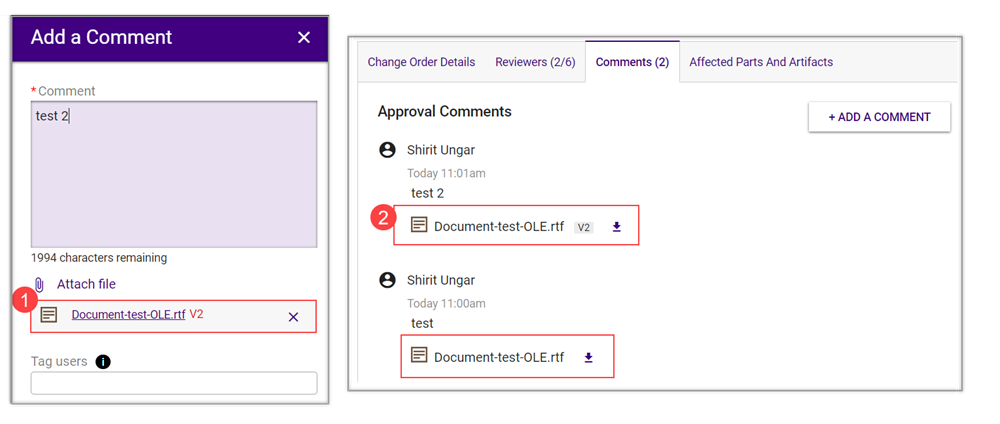
a. If you are reviewing a Change Request or Change Order, on your approval comments, you can click the Add attachments button and add a file. If the file has the same name as a previously uploaded file on the request, it will version the file and will be available for everyone to view on the Supporting files tab on the Change Request.
b. If you are not reviewing the Change Request or Order and want to version a file, you can create a comment and upload the file on the comment. You can also tag users if you want them to be notified of the comment and updated file.
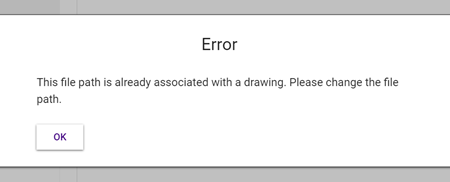
If I get the error that the file name and path has already been used when trying to submit a Change Order for approval. What do I do?
a. The error means that the file has already gone through ECN or Change Management and has reveived it's first official rev. You likely selected the wrong request type when creating it. Search for the file on the Search All page and if it comes back in a search with a rev associated with it, that means it's already gotten an official rev and you need to withdrawn the current request and create a new one while selecting "Change existing artifact"
b. If you created an ECN for the artifact and didn't finish it, it will "steal the new revision" and you need to create a ticket for the PLM Dev Team to update the drawing table to allow you to use that revision on your Change Management request.
I approved a Change Order and it is still showing in My Tasks page with a Review Now button like I haven't approved it. What do I do?
a. If you are the Request Owner/Initial Reviewer and Order Owner, the system will automatically approve on behalf of the Initial Reviewer, but will not approve on behalf of domain or functional groups. You have the ability to submit another approval on behalf of the domain and functional groups. That is why you still see the Change Order in your approval queue.
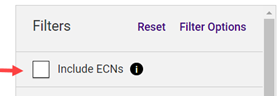
How do I search for old ECNs?
a. ECN and associated ECR/CAD data has been migrated to Change Management and will show up in search results on Search All page. There will be a toggle to include or exclude the ECN data.
I do not see the file in the F drive or I cannot view the PDF on the Change Management page. What do I do?
a. Ensure that you saved the PDF within 10 minutes of the last save of the drawing file. If it is outside that window, resave the file and PDF and mark as approved so that it can be properly copied to the F drive.
b. If you see issues in the F drive where the file is not available and you see weird folder names like "New Folder", this is likely a problem with the copying of the file. Create a ticket through Change Management for the PLM Dev Team to fix that.
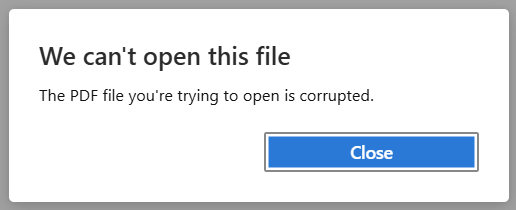
I receive a corrupted error when trying to open a file. What do I do?
a. Open File Explore and navigate to your user local temp storage (C:\Users{usermasterid}\AppData\Local\Samtec.Plm.VaultAssistant). Delete the problem file (or all files), and retry opening the file.