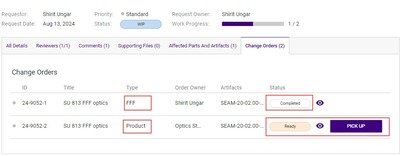
Change orders are released to be able to be picked up in this order:
Phase 0: Form, fit, function change order
Create a form, fit or function customer notification through the FFF order
FFF order must be completed (implementation date is reached) before the next set of change orders are released
Read more info about FFF orders below
Phase 1: Artifact change orders
Product, Tooling, Firmware and Signal Integrity
All change orders must be completed before the next set of change orders are released
Phase 2: Product data updates
Once all artifact change orders are complete, the product data update change orders are released to be able to be picked up
Change orders that have been released will display in the Ready tab in the Change Orders Queue
Change orders that are waiting for dependent change orders to be complete will be in the Coming Up tab in the Change Orders Queue
Becoming a Change Order Owner
If you are a member of a change order owner group, you can own a change order in one of two ways:
You can be assigned by the request owner. If the request owner selected you as the assignee, you'll receive an email when a change order is assigned to you and is ready to be worked on.
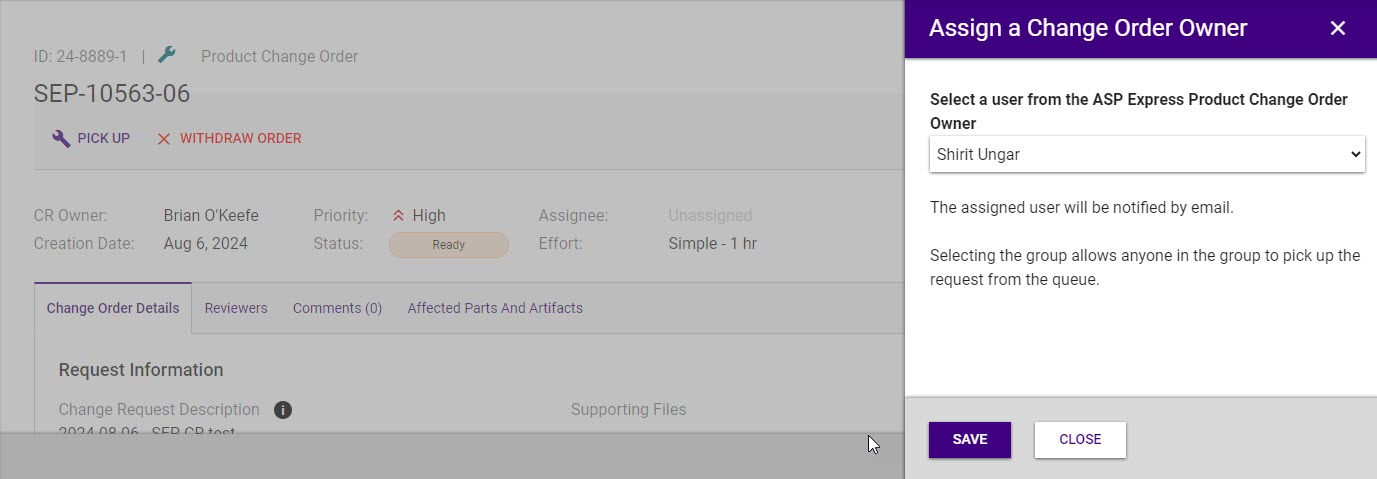
You can be assigned by a Domain Admin. A Domain Admin can assign (or re-assign) an order owner by hovering over the assignee area (which will show "unassigned" or the name of the owner), clicking the button which will open a modal, and selecting an owner from the dropdown list.
If the order has functional groups selected, members of the functional groups will show in the list and can be selected to own the order.
You can pick it up. If the request owner kept the default group as the assignee of the change order, you will see the change orders in your Change Order Queue on Tasks page and you can click on the button to pick it up.
Admin Close
Admin close is now automated once the last product, tooling, SIG or firmware order is approved or completed.
If there are other product, tooling, SIG or Firmware orders on the request, ALL of them must be approved or completed before the automated admin close process begins
Upon completion of your change order, the system will mark the files listed in the approved change order and add a note with the order ID
Any other files that you were editing as part of the order WILL NOT have their state changed. You will receive an email when the admin close happens so you can go back and update the state of related files not in the order
Completing a FFF Change Order
The change order will automatically be marked complete once the implementation date set in the FFF system is reached.
If you need to cancel or retract the FFF, you will need to do that in the FFF customer notification application AND also withdraw the full request the FFF order was part of. If there are additional change orders in that request you should create a new request for that work.
Completing Product Change Orders
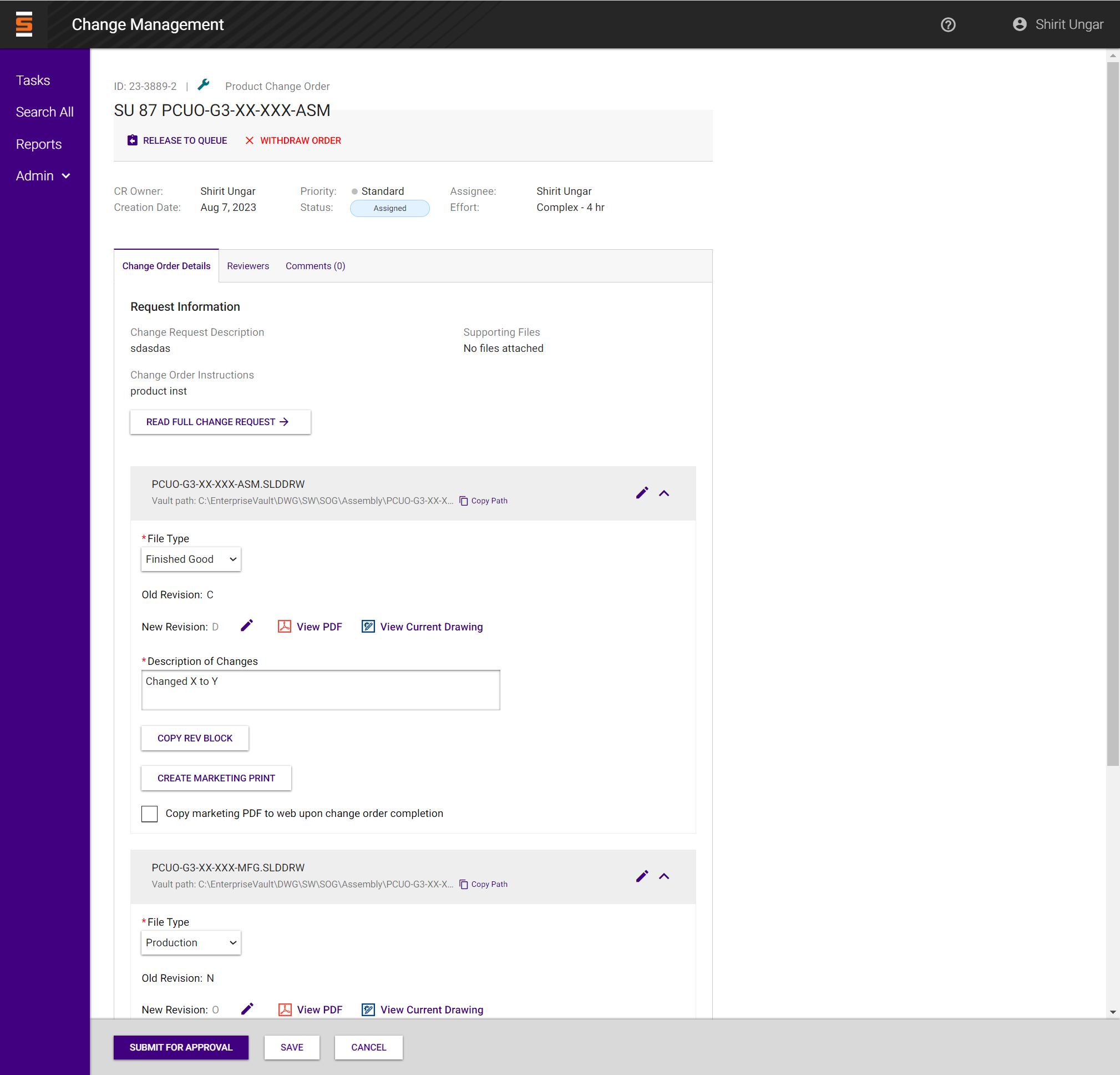
The change order owner will see at the top the change request description, change order instructions and supporting files
See all request details by clicking "Read full change request" button
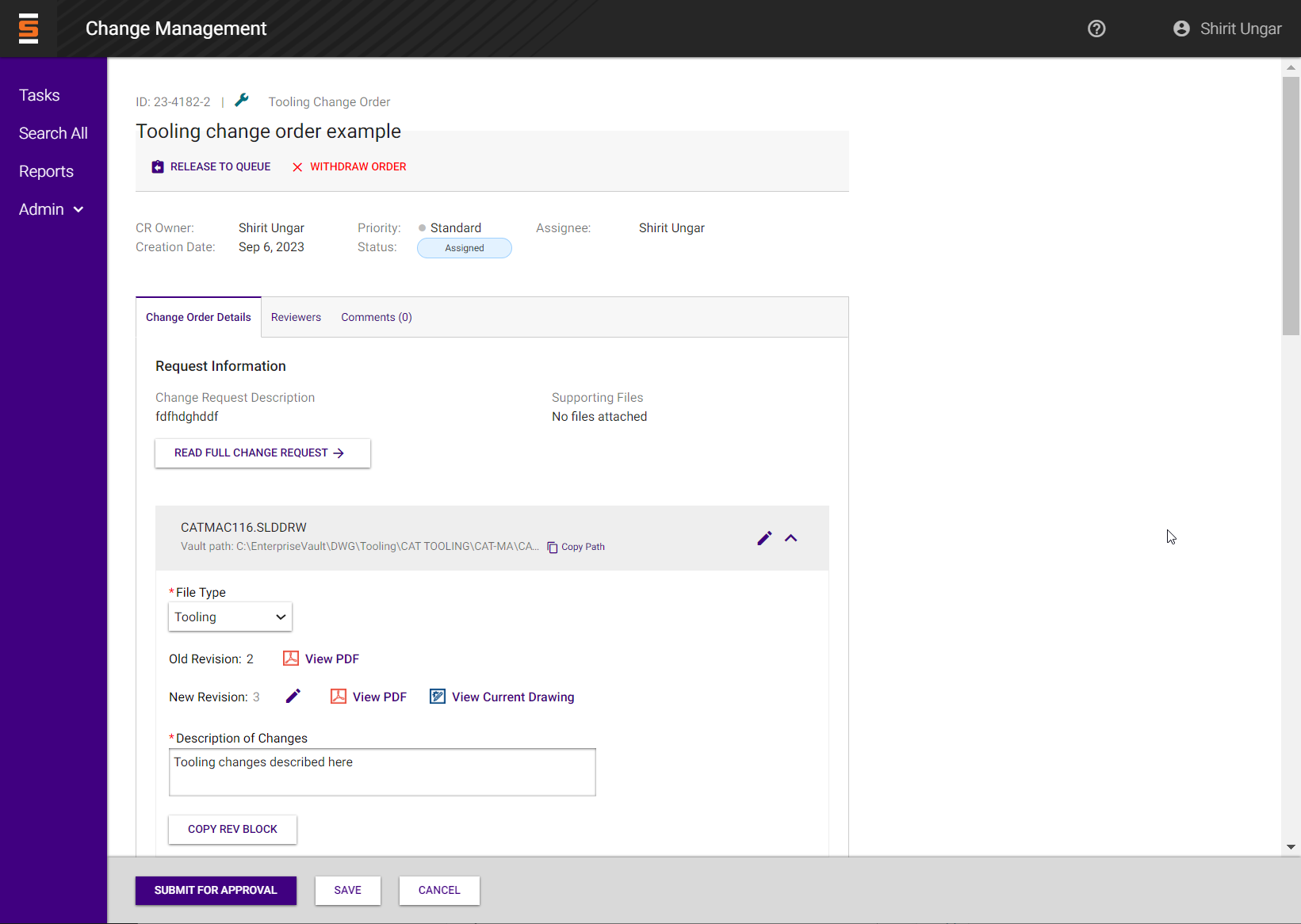
Each artifact associated with the change order will be displayed with the needed information to edit the artifact:
File path, click "copy path" to copy the F drive path to your clipboard and paste into File Explorer
Drawing type
Old Revision of the artifact
New Revision of the artifact, with links to view the drawing
Description of Changes field
The change order owner must fill out all required information and make necessary changes to the artifact, including copying the rev block to the artifact.
When an artifact is released to production, the "create marketing print" button is available for the change order owner to start the automatic creation of marketing print. A time stamp will display next to the button to confirm the time of the last creation/update.
The change order owner can also check the checkbox "Copy marketing PDF to web upon change order completion." to have the marketing print display on Samtec.com website.
Once all changes have been completed for the artifact, the change order owner will submit the change order for approval.
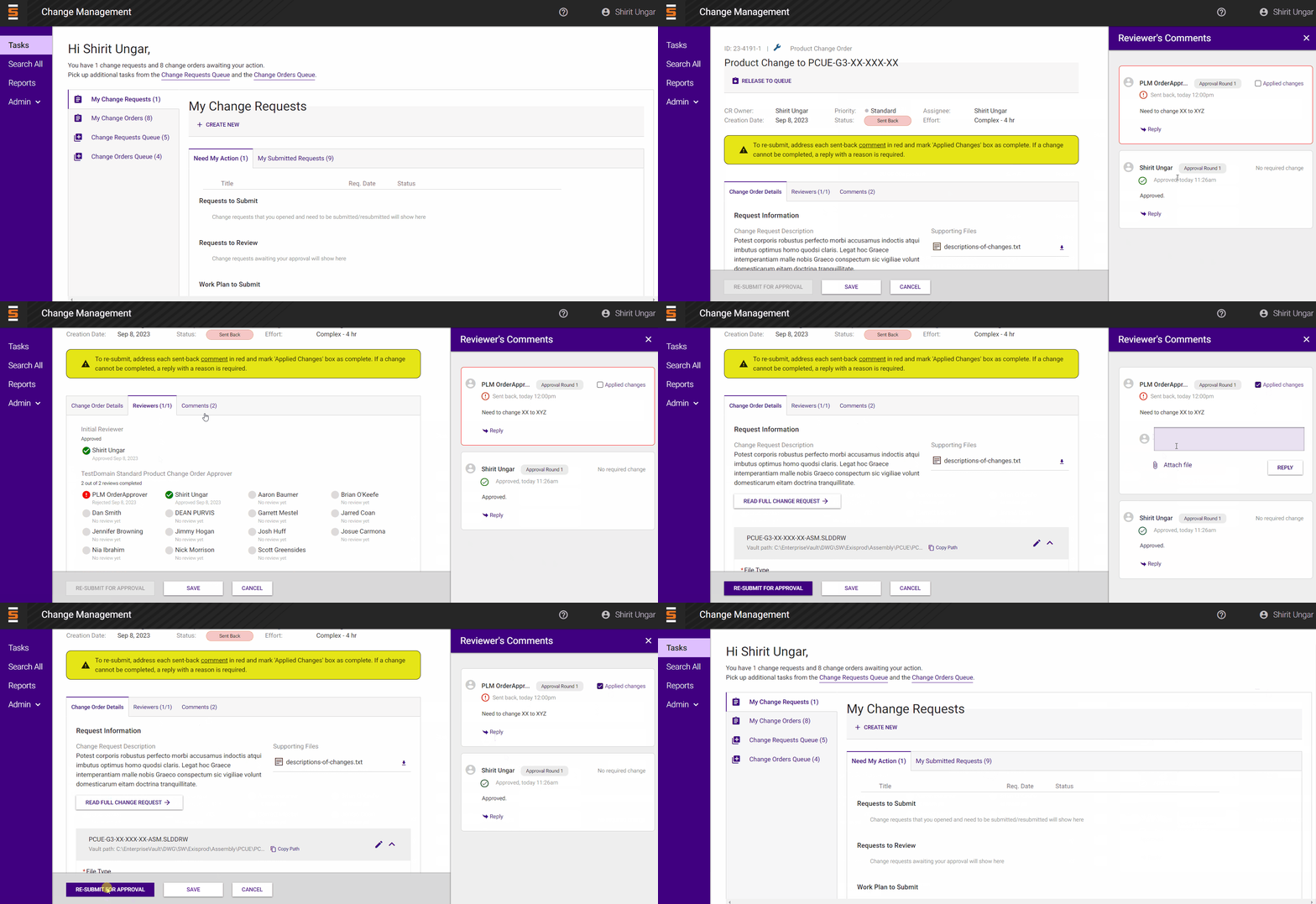
If the change order was sent back by the approval group, the change order owner must address the comments and re-submit for approval.
Once the change order is approved, it will be market either Approved or Complete depending on dependencies it might have.
Admin close is automated. Upon completion of your change order, the system will mark the files listed in the order in Approved state and add a note with the order ID
Completing Tooling Change Orders
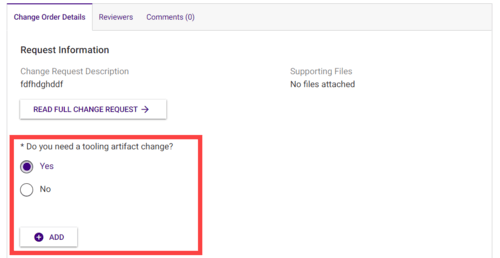
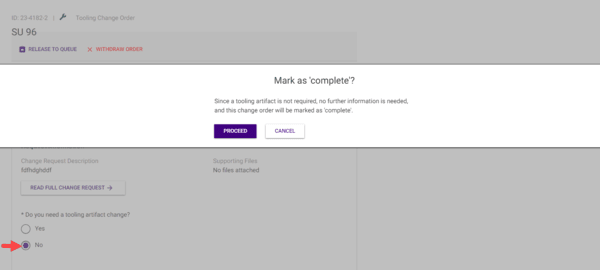
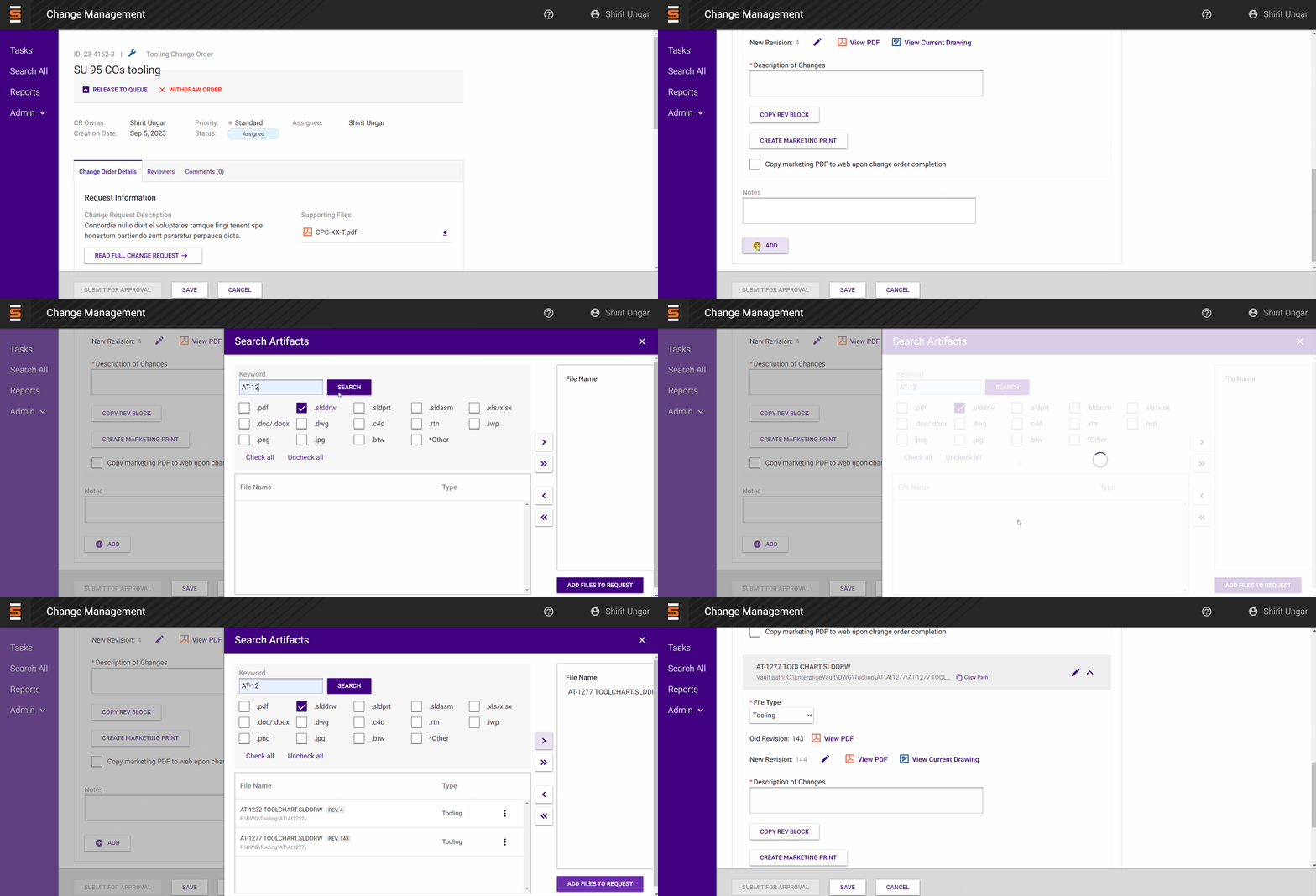
If the request needed a tooling review, the change order owner will mark if a tooling artifact change is needed
If the change order owner selected "yes" They will then click Add to search for a tooling file from the F drive
If the change order owner selected "no", the change order will be marked 'complete'.
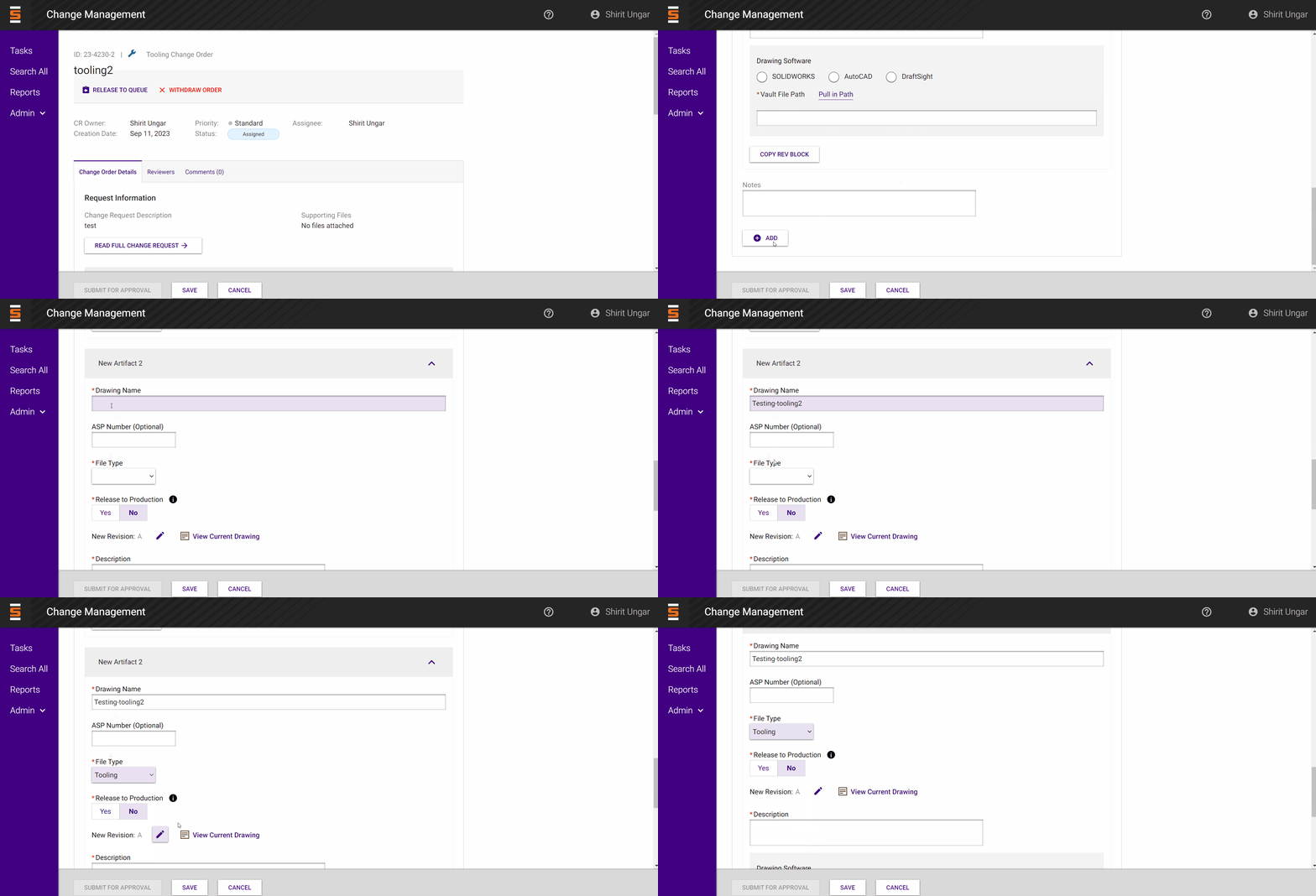
when a tooling file is selected, it will populate the name, file path and drawing type
The change order owner must fill out all required information and make necessary changes to the artifact, including copying the rev block to the artifact.
By default, the first revision of a released production tooling artifact is 0, but you can edit it directly to revision 1 by using the pencil icon.
A change order owner can add tooling artifacts to the change order.
When a change order is part of a "new" request, clicking the ADD button will add a set of fields for a new artifact which will display on the page to fill out
When a change order is part of a "change existing" request, clicking the ADD button will aloow selecting a tooling artifact which will add it to the change order.
Once all changes have been completed for the artifact, the change order owner will submit the change order for approval.
If the change order was sent back by the approval group, the change order owner must address the comments and re-submit for approval.
Once the change order is approved, it will be market either Approved or Complete depending on dependencies it might have.
Creating and Completing FFF Change Orders
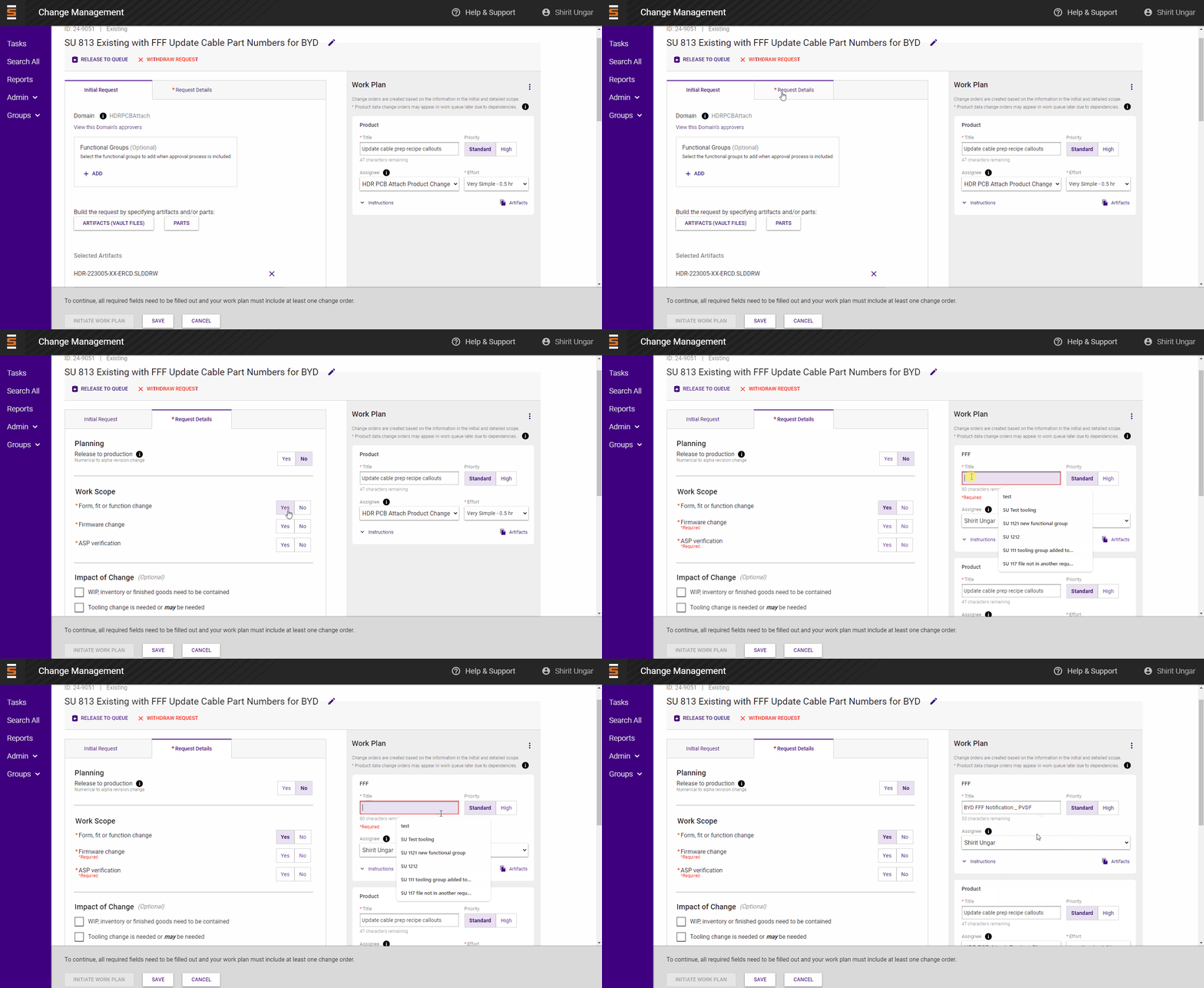
Creating an FFF (Form, fit and function) order is done when the change request owner fills out the request details to create the work plan. Under "Work Scope" click "Yes" for "Form, fit or function change"
The FFF change order card will show on the right under the Work Plan
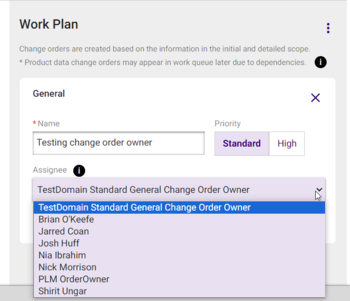
By default, the change request owner will be selected as the assigned owner for the FFF order, but you can click the dropdown to change it.
Depending on the domain's setup, the request might need to go through an approval process (Indicated by the button below showing as "Submit for Approval" instead of "Initiate Work Plan")
If the request has an approval process, the FFF can only be started when the request is approved.
Once the request is approved, the FFF order will be available to work on and have a button that will direct the order owner to the FFF system to create a Product Customer Notification.
To create the Product Customer Notification in the FFF system, you need to fill out the required fields, select affected parts, select customers, create the PDF and submit for approval
Approvers in the FFF system should get report to show outstanding FFF approvals and once one person from each group approves the FFF, it gets emailed to all customers that have purchased the listed parts in past 2 years.
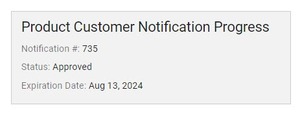
The FFF order will have a section to display the status of the Product Customer Notification as "Pending Approval" or "Approved", and will link to view the created notification.
Once Implementation Date has reached the FFF order will change to "Complete" and the Product/Tooling change order will be available to be picked up and worked on.
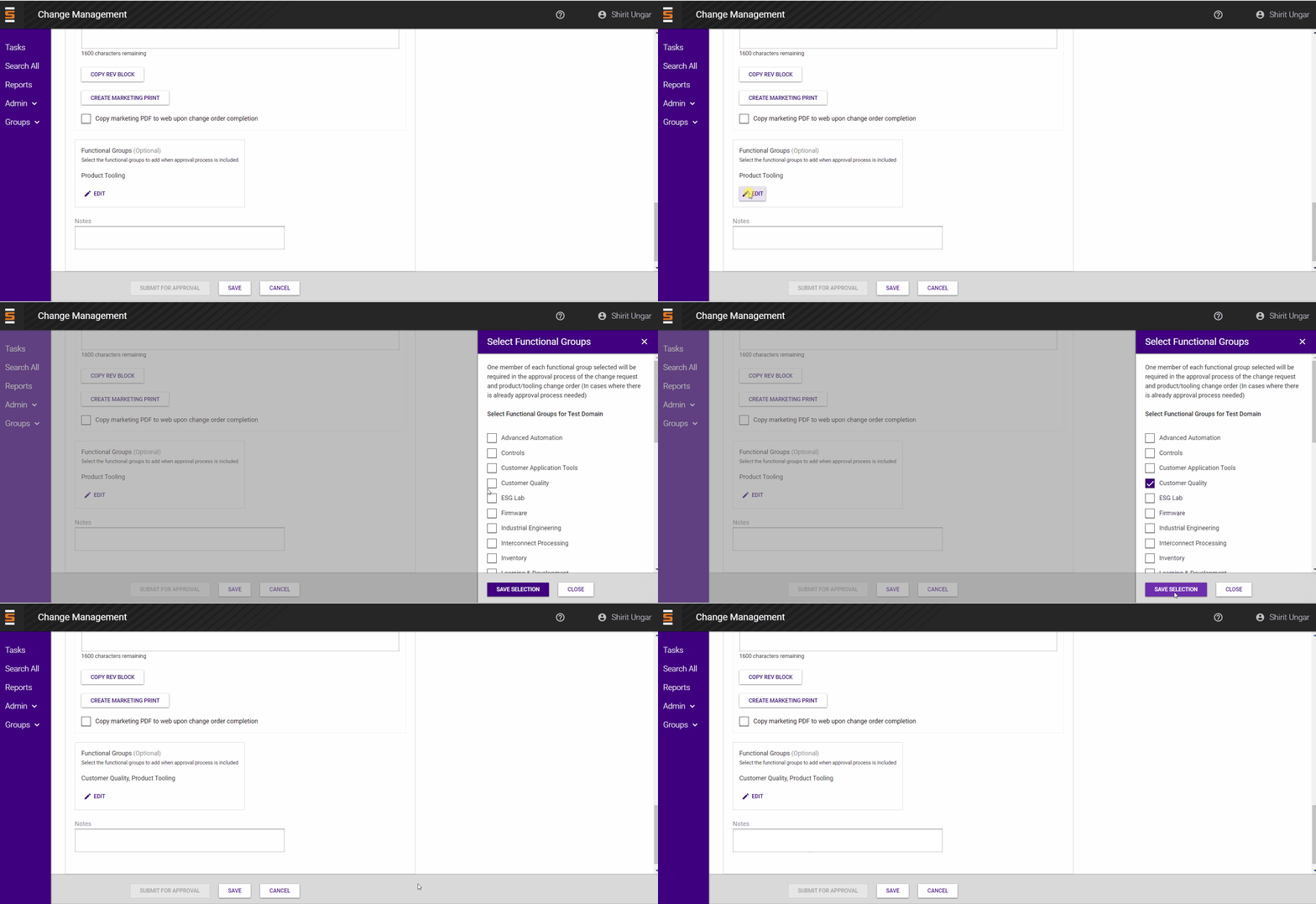
Editing the Functional Group Approvals Needed
The product change order owner has the ability to edit the functional groups that need to approve the product order
The product change order owner hits the edit button on the functional groups box to check or uncheck the groups they want to approve the product order
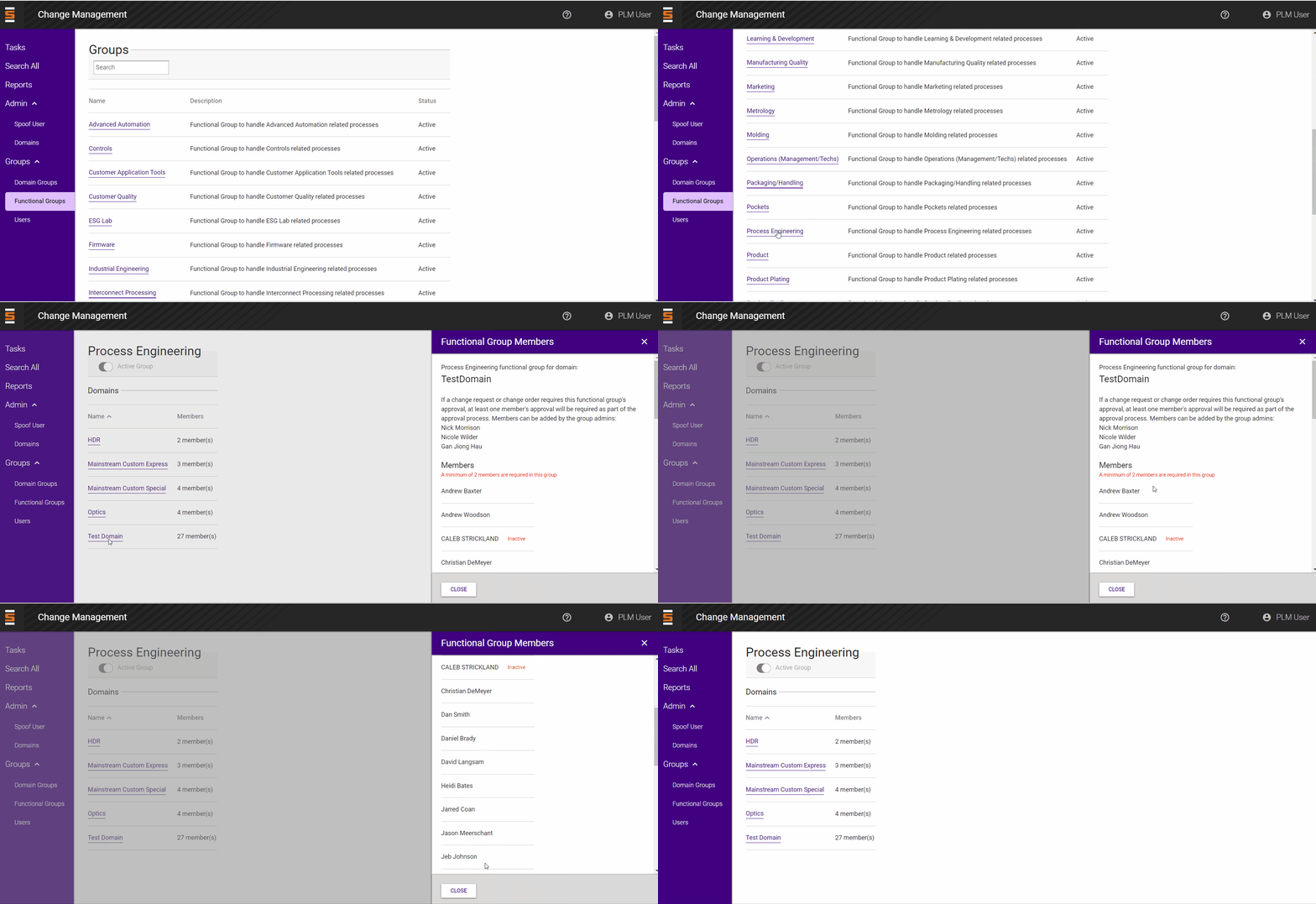
Refer to the Functional Groups page under Groups menu to view who is assigned to the functional group for your domain
Tooling approval groups are added by default to the product order and require 1 person to from the tooling group to approve the product order. This allows us to differentiate the product and tooling groups for ease of management.
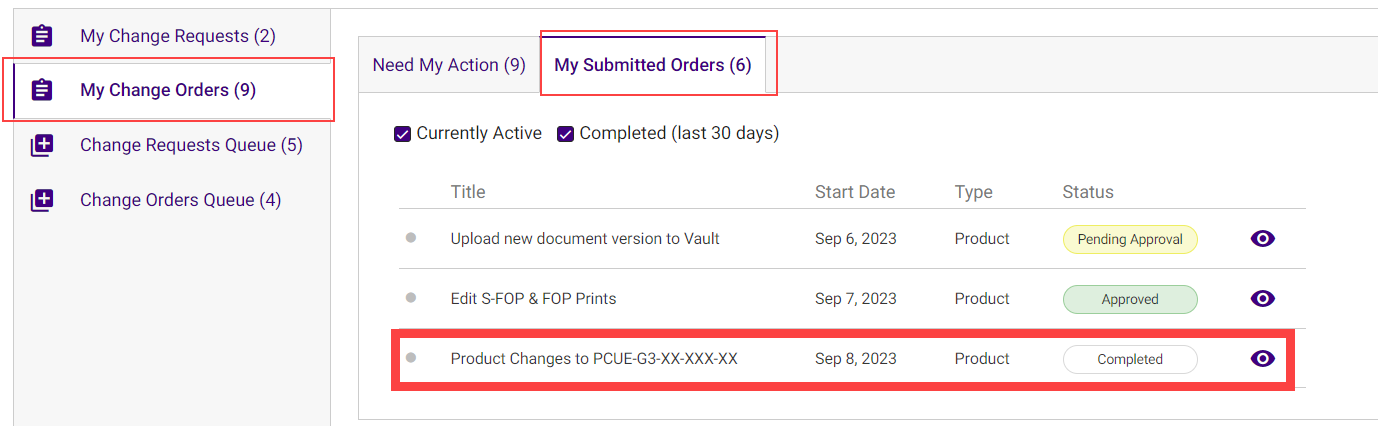
Viewing Completed Change Orders
You'll be able to see all your submitted and the last 30 days of your completed orders in My Submitted Orders tab on My Change Orders