About Like Part Generator
The new Like Part Generator in ASP saves data in a structured way instead of free text, making it searchable, more accurate, and better at describing complex custom parts. It also supports multiple like parts in a single entry.
Create a Support Ticket
If you cannot find the needed answers in this Help guide, or if you want to leave feedback/suggestion - Fill out this form to create a ticket.
How-to Overview
What's New?
- Like parts are no longer saved as a simple text string, but instead each value is tied to its specific callout label
- Modification notes are tied to a specific callout value
- You can add multiple like parts and label them as J1, J2, etc.
- Like parts string now have a consistent structure, using X values
- We save and display custom values that were entered, to promote consistency and build data for future decisions
Filling in a Like Part
Type and select a series to display the callouts.
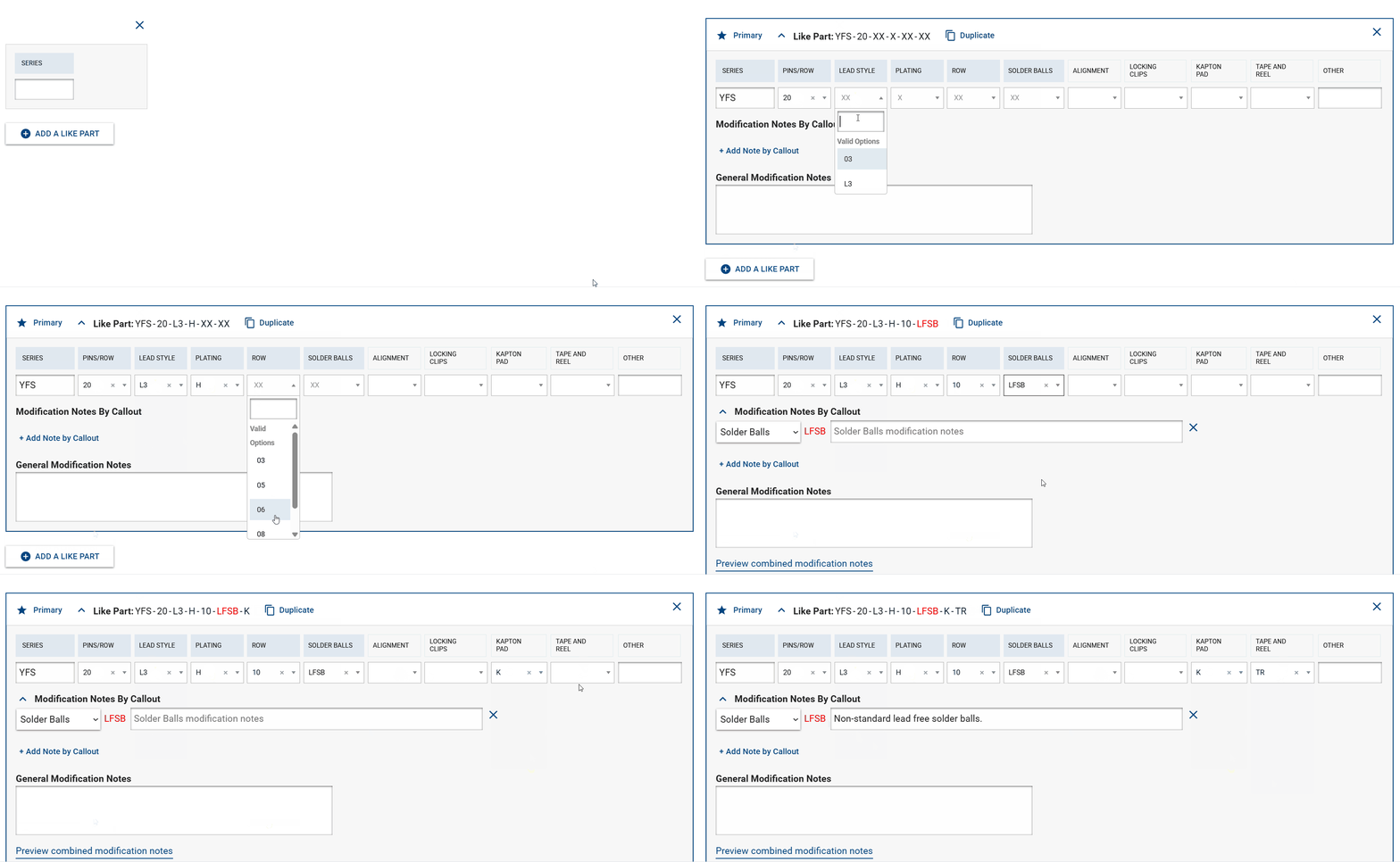
In each callout, use the drop-down to view valid options or type in a custom option.
- Previously entered custom options will also be listed in the drop-down, which you can select from.
Red text denotes custom
- Custom options: If you enter a value that is not listed among the valid options, or select an option under Custom Options, the text will appear in red
- Custom option from a range: A number outside the valid range (e.g., Length) will be marked red
- Previously, ranges always appeared in red in the old like-part generator. Now, only truly custom values will be marked in red

- Any value in 'Other' callout
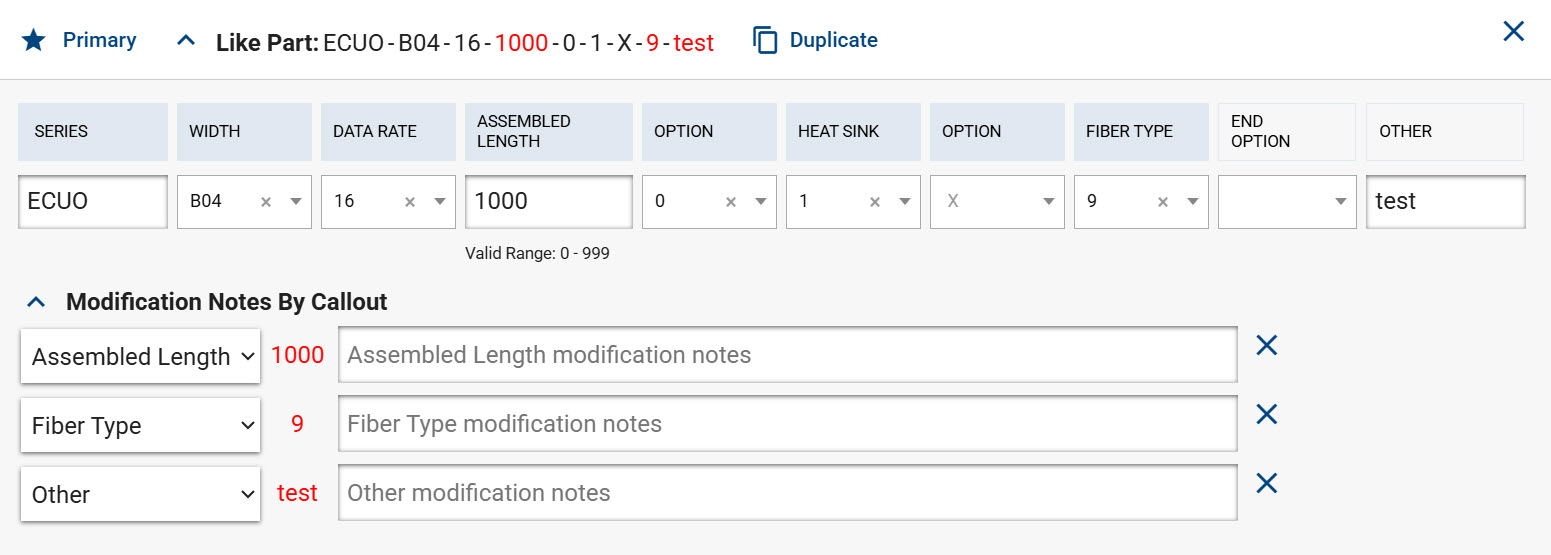
- If you add a modification note (or even a space) to a valid option , the system will mark red the option in the like-part string.
Required callouts
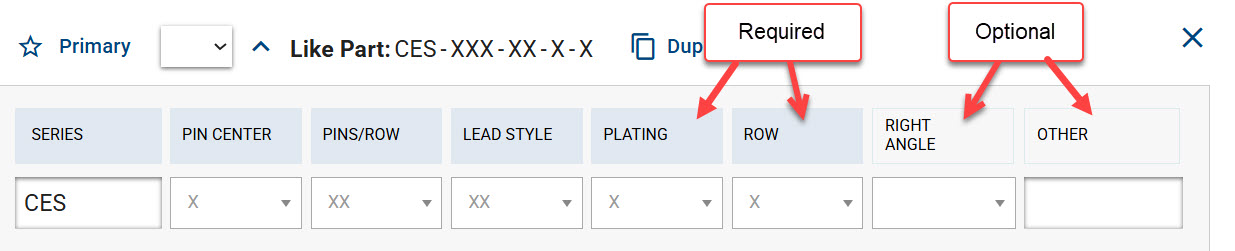
Required callouts, marked with a filled label, must have a value and by default show X to denote "any value."
- If you enter a different option, and then remove it, it will go back to the X value
Optional callouts
Optional callouts, marked with an outlined label, can be left empty (and not appear in the like part), can have a specific value, or can have X selected to denote "any value."
Tip: To speed things up, you can use the keyboard only to create a like part by tabbing through the callouts and selecting using ↑ ↓ keys and Enter.
Understanding X Value
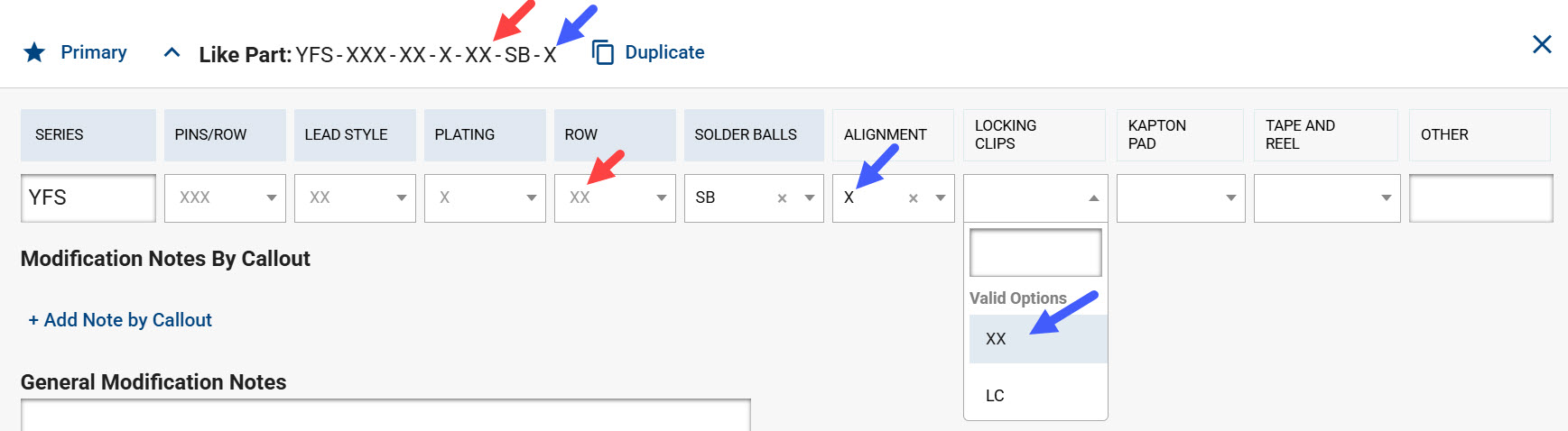
- X means "any valid value in this callout"
- X should not be used as a placeholder for a custom value
- Any number of Xs in the field will default to the proper number of Xs this callout needs to have to denote "any valid value"
- X appears by default for required fields (red arrow), so if there is no specific value needed, you can leave it unchanged
- If you entered a value in a required field and then removed it, it will go back to X.
- If you need X for optional values, you can select it from the drop-down (blue arrow)
Modification Notes
Modification notes by callout
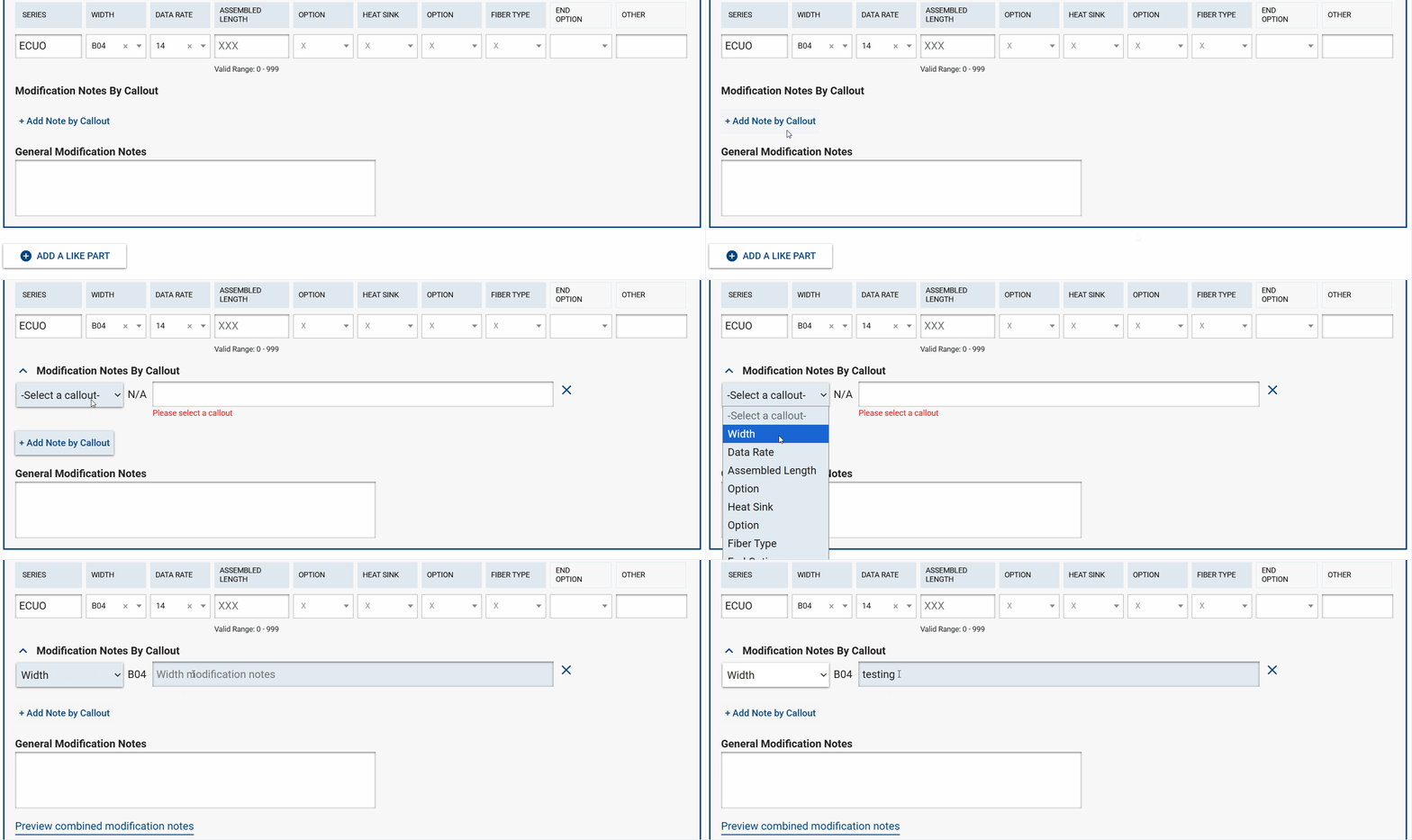
- You can now tie your modification notes to the exact callout that needs to be customized
- Custom values entered in the like part will automatically create a modification note for that specific callout, ready for your input
- You can remove it if not needed
- You can manually add any callout that is not showing by clicking the "+ Add note by callout" button and selecting the callout you need
- You can either fill in modification notes in each row, leave them empty (which will just display the label and value), or remove them using the "X" button
General modification notes
- Enter any modification notes that are not for a specific callout in this field
How Modification Notes Will Display in ASP
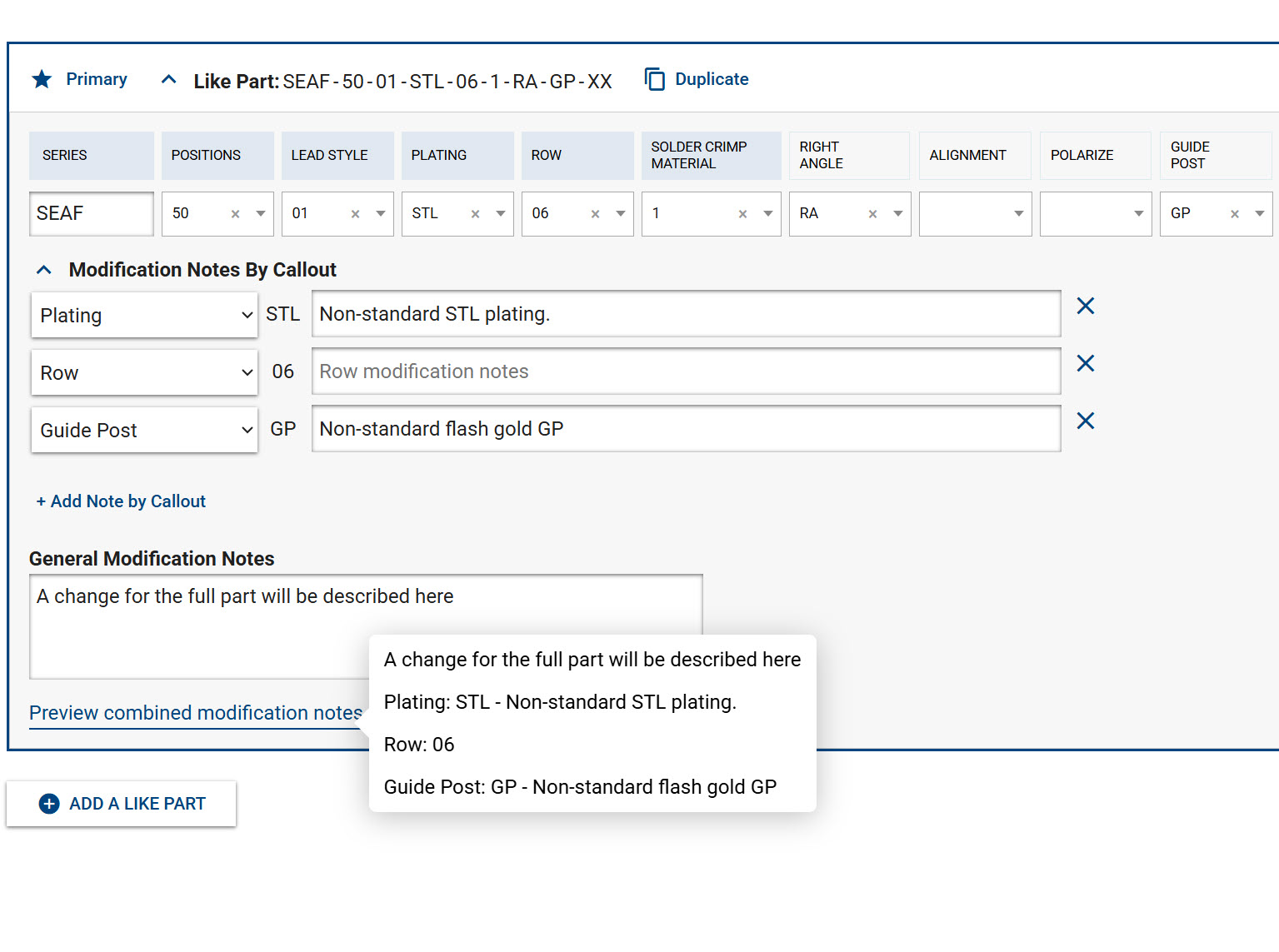
- Preview: To view the combined modification notes as they will appear in ASP, hover over "Preview combined modification notes"
- General modification notes will display first
- Callouts will display in the order they appear in the like part
- If a callout is listed with its value, but no modification note is entered, only the callout and its value will be displayed
- If you removed a callout (by clicking the X) along with its modification note line, it will not be listed at all
- If there are several like parts, all like parts will display with their modification notes under each like part

Multiple Like Parts
How to
-
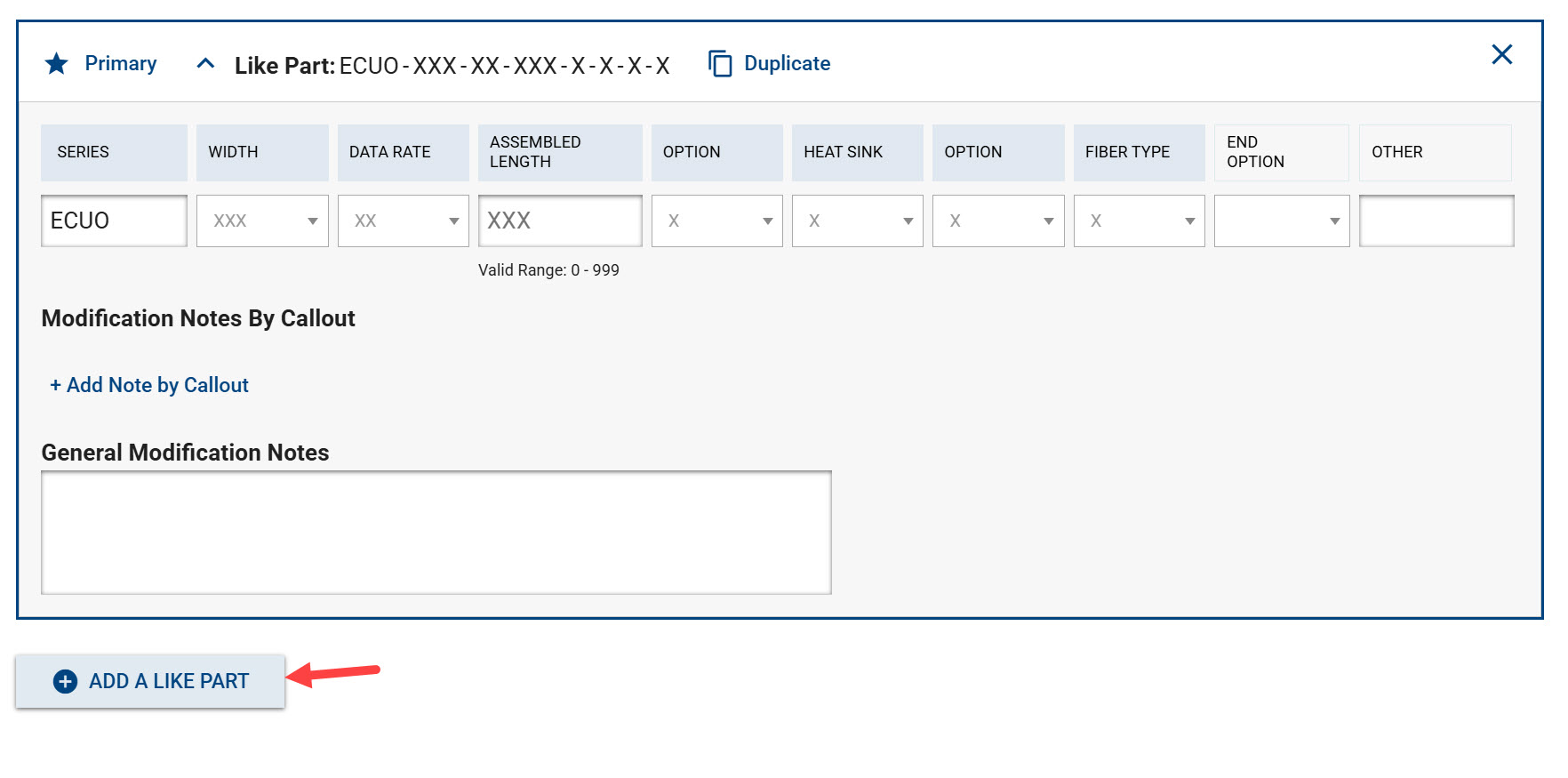
To add another like part, click the "+Add a like part" button
-
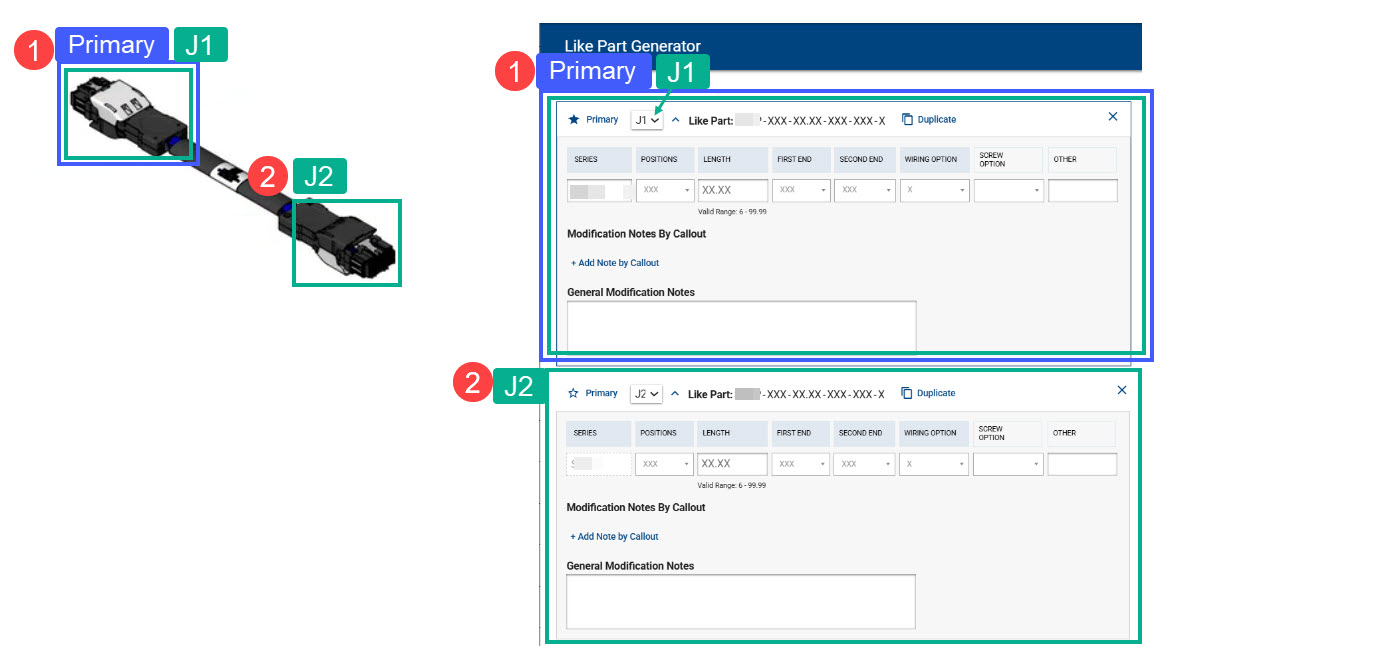
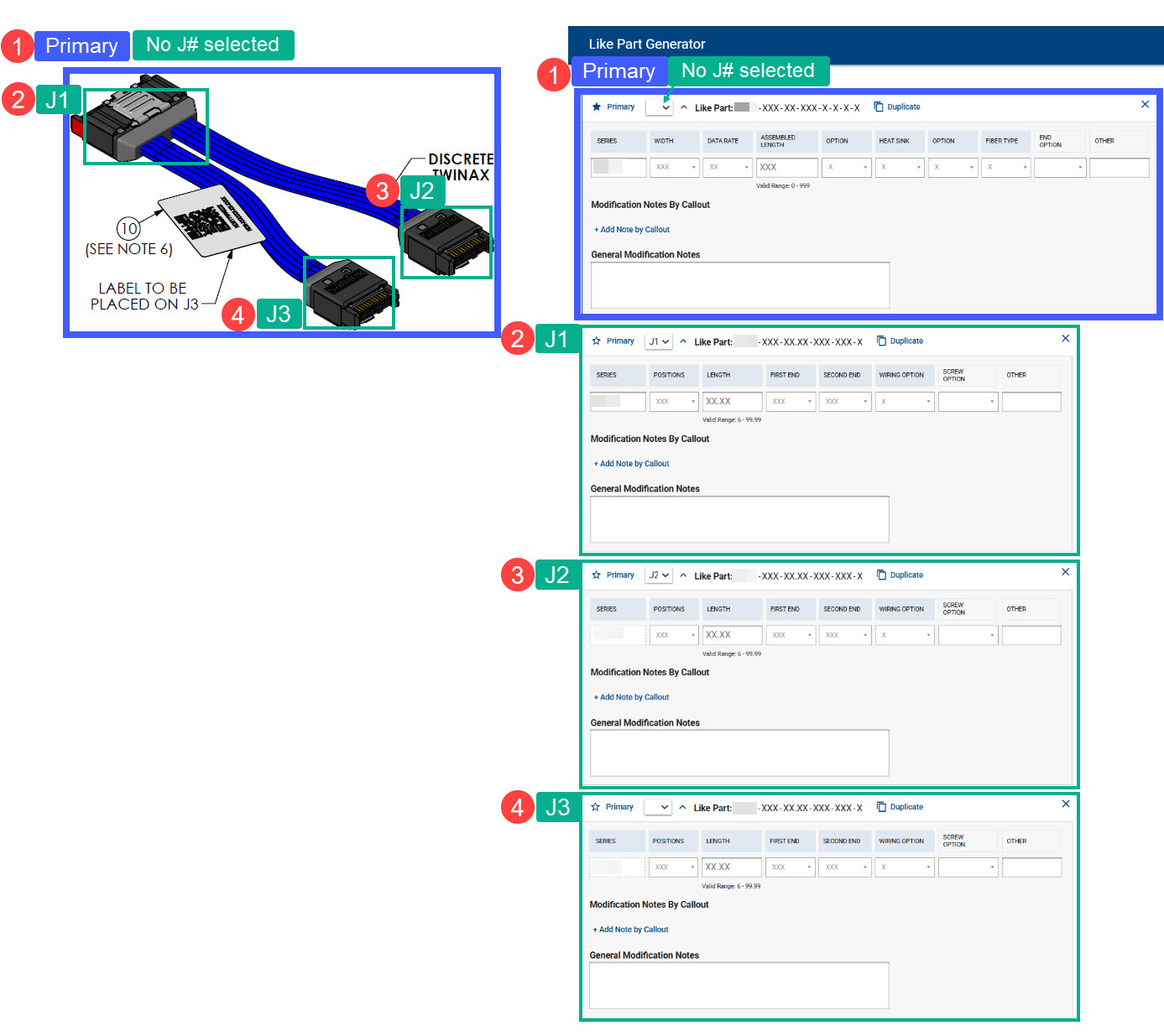
You can select J1, J2, J3, etc. to align with the like part it's representing according to the drawing
-
"Primary" like part sets the reporting series of the custom part, and in legacy systems that may only show one like part, it will be the one presented
- By default, the first like part is primary, but you can select a different one by clicking the star icon on the like part you want as primary
-
You can collapse/expand like parts as needed
-
You can remove a like part that is no longer needed
When to use multiple like parts?
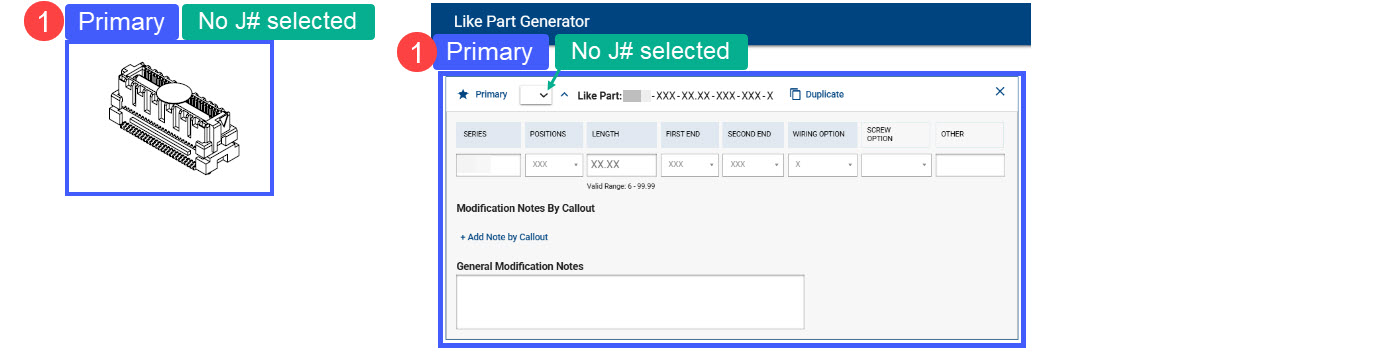
- When one like part is not enough to describe a custom part, or when you need to describe different ends of the custom part, defining multiple like parts is helpful.
For example, this simple part might be described with one like part only.
You might want to add 2 like parts to describe 2 ends.
You might want to describe the full like part and set it as primary, and in addition to that describe each end.
Duplicating
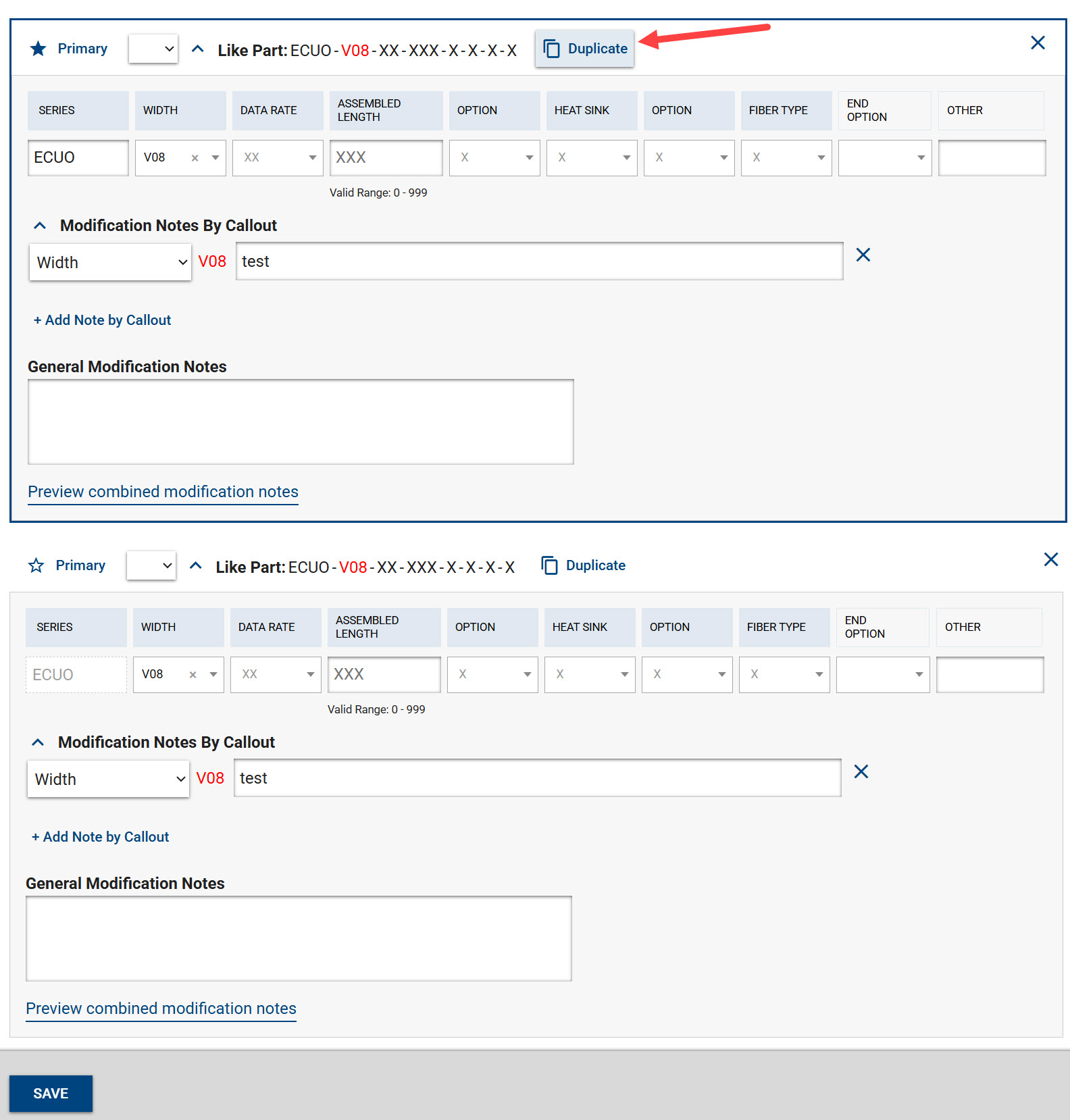
To duplicate a like part, click the Duplicate button, which will make an exact copy of what you already entered.
- The series will be set but not editable; you can still make changes to the callouts and modification notes
- The duplicated like part will have all information from the original:
- All modification notes will be copied
- Removed modification notes will also be removed from the duplicate
Old Like Parts
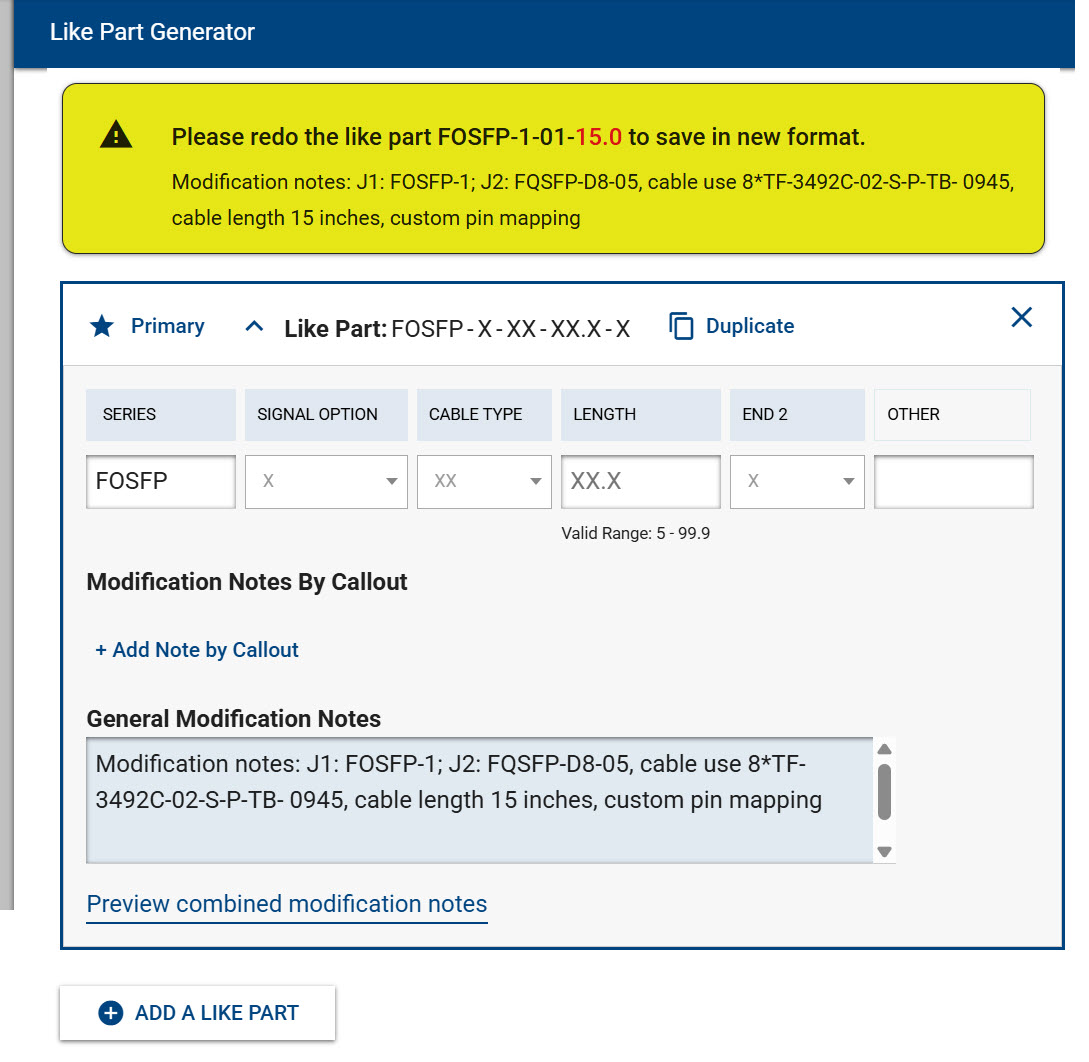
Parts that were previously entered and need to be edited will need to be recreated in the new structure in order to make an edit to them. This is because like parts were previously saved as a simple text string and cannot be accurately reconstructed by the system, especially when series callouts occasionally change.
- A yellow message appears at the top with the like part and modification notes
- The series will be selected and callouts displayed with their default values, ready for you to select correct values
- The modification notes will be placed in the general modification notes by default, but ideally should be moved to the modification notes by callout
- Once you save, it will override the previous like part and its modification notes
- If you have made a mistake and need to view the old information again, you can reach out to us to retrieve that information