Tasks Page
The task page consists of 4 tabs which allow for the viewing and management of Change Request and Change Orders.
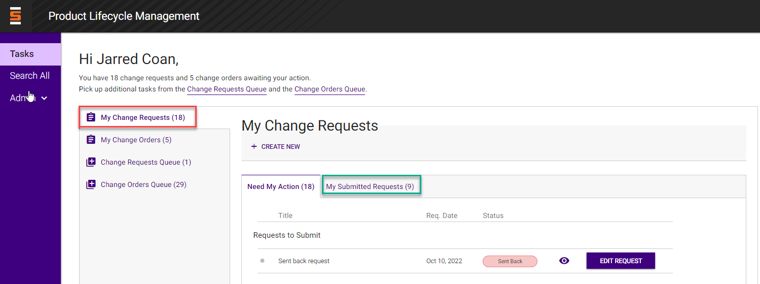
My Change Requests Tab
Manage change requests that need action or change requests you have submitted
- Need My Action Tab
- Requests to submit - Displays drafts or Change Request that an approver has sent back.
- Requests to review - Displays Change Request requiring your approval.
- Work Plan to submit - Displays your owned Change Requests that you need to initiate task for.
- My Submitted Requests Tab
- Keep track of requests you initiated so you can see where they stand.
Change Request Status Labels
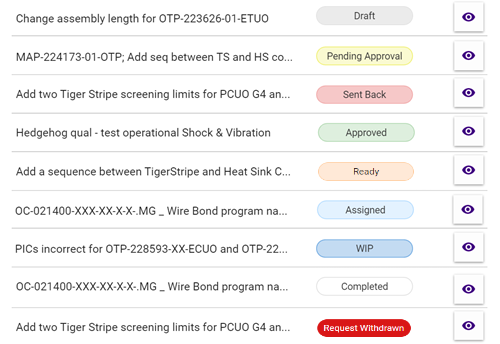
Draft - Change request is in draft, no one else can see it but the requestor.
Ready - Change Request is ready to be picked up or assigned.
Assigned - This change request was picked up. Work plan (change orders) were not initiated yet.
Pending Approval - Change request is under review.
Sent-Back - During the review process this change request was sent back and is awaiting the request owner's attention.
WIP - Change request was approved and work was initiated, there is 1 or more change orders in progress.
Completed - All change orders under this request were completed.
Request Withdrawn - The full request (and all its change orders) was canceled.
My Change Orders Tab
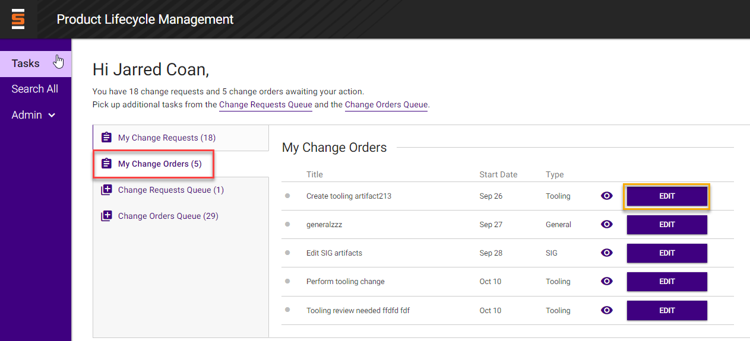
Manage (Edit and View) change orders that you have picked up.
- The Edit Button - Can be used to work on the order and complete it. Orders will drop off this list once completed.
- The Eye Button - Opens the change request summary page in a side modal.
- Change Order Title - Opens the change order summary page.
- Need My Action Tab
- Displays change orders that are waiting for your action.
- Coming Up Tab
- View change orders that that you own but have a dependency and cannot be worked on yet.
- My Submitted Orders Tab
- Keep track of change orders you submitted so you can see where they stand.
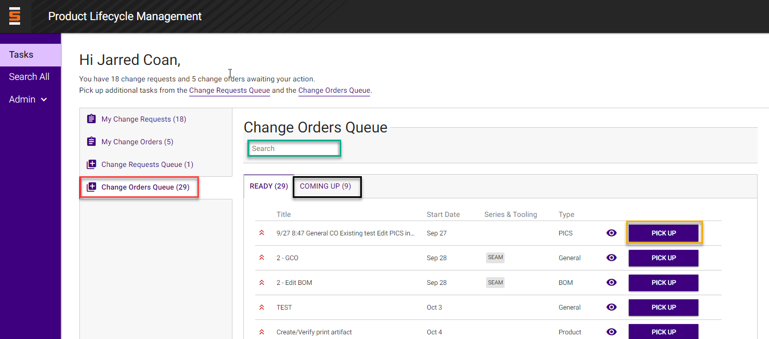
Change Request Queue Tab
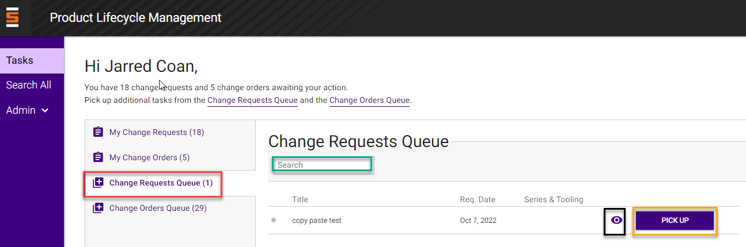
Change requests will display here for users in the Change Request Owner group to pick up and own.
- Search Bar - Can be used for quick type searches.
- The Pickup button - allows users to pick up and own the Change Request and will initiate the work plan.
- The eye button - opens the Change Request Summary page in a side modal.
- Change Request Title - opens the Change Request Summary page.
- Pick up button allows user to pick up and own the change request and initiate the work plan.
Change Order Queue Tab
Change orders from your applicable group can be viewed and picked up from this queue.
- Once the work plan has been initiated, change orders will be released to be picked up in following order:
- Form fit function.
- Artifact change orders: Product, Tooling, Firmware and Signal Integrity.
- Product data upgrade change orders.
- The Pickup Button - Makes you the owner of a Change Order.
- The Eye Button - Opens the Change Request Summary Page in a side modal.
- Change Order Title - Opens the Change Order Summary page.
- Ready Tab
- Displays change orders that are ready to be picked up and worked on
- Coming Up Tab
- Display change orders that have a dependency.