About PLM Artifact Management
Artifact Management allows all users to search, open, email and copy links to Vault artifacts. Artifact Management copies files from the Vault to the cloud to allow all applications and users to get artifacts from a single source. It also allows us to better manage artifact metadata and relationships to parts and other artifacts. It replaces Print View as the primary print search tool.
Create a Support Ticket
If you cannot find the needed answers in this Help guide, or if you need additional access, or want to leave feedback/suggestion - Fill out this form to create a ticket.
How-to Overview
Logging in
- To log in, use your Windows username and password that you use to log into your machine
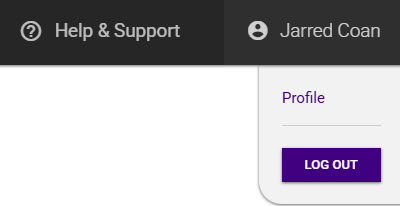
- If you need to log out, click on your name in the top right corner of the page and select log out. Recommendation: Operators using kiosks should log out when they are finished with Artifact Management. This will allow the next user to log in.
Searching
-
Enter search criteria in the search bar and click search button or hit Enter to produce search results
-
The system searches for the file name and the file path based on the entered criteria and filters selected
- You can utilize leading or middle wildcards using the "%" sign
- i.e. TSW-%RA

-
You can utilize multiple middle wildcards
-
The system automatically adds the trailing wildcard
Opening files
-
To open the print PDF from a search result, click on the PDF button next to the file name
- The PDF will open using your machines default PDF viewer, whether that is set as the browser or a separate app like Adobe

-
To open the original file type, click the icon under the file column. For known file types, it will have a file icon like eDrawings, Word, Excel and other Office documents
- The file will download and it should automatically open using the proper application
- If the file doesn’t have a source application, you will need to open your browser downloads and choose an application to open the file
-
Do not click on the file name as it will not open the file
Filters
-
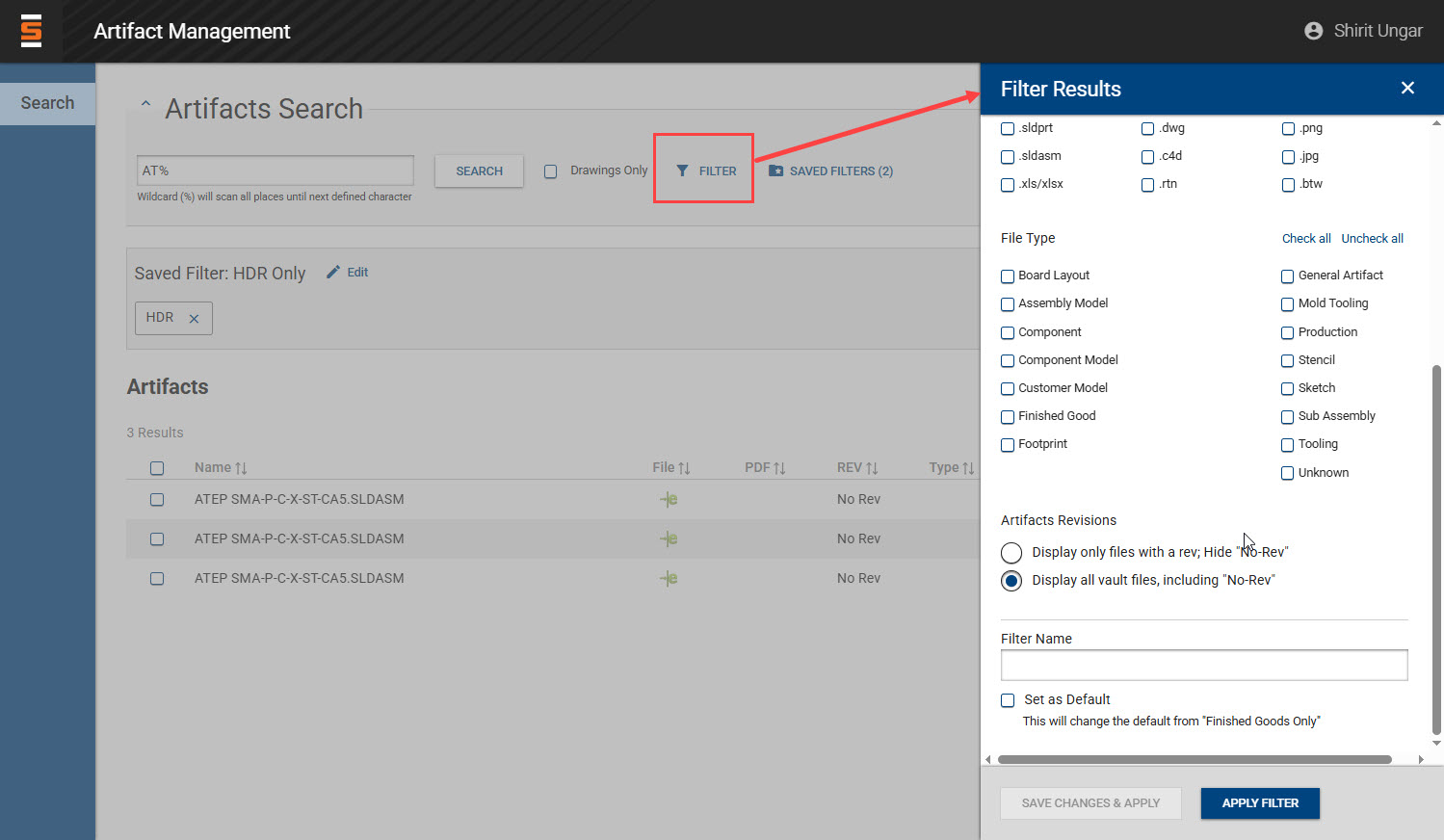
Click on the filter button to open filters
-
Check the necessary filters and click Apply Filter button to see your filtered search results
-
Your selected filters will display below the search box
- You can remove individual filters by clicking on the X
- You can remove all filters by clicking Clear All
-
You can save filters and set a default filter that will filter your search results for every search
- To save the filter, enter a value in the Filter Name field and click Save Changes and Apply button
- To make your saved filter a default, check the Set as Default checkbox
-
To select a saved filter, click on the Saved Filters button and select the filter you want to display
-
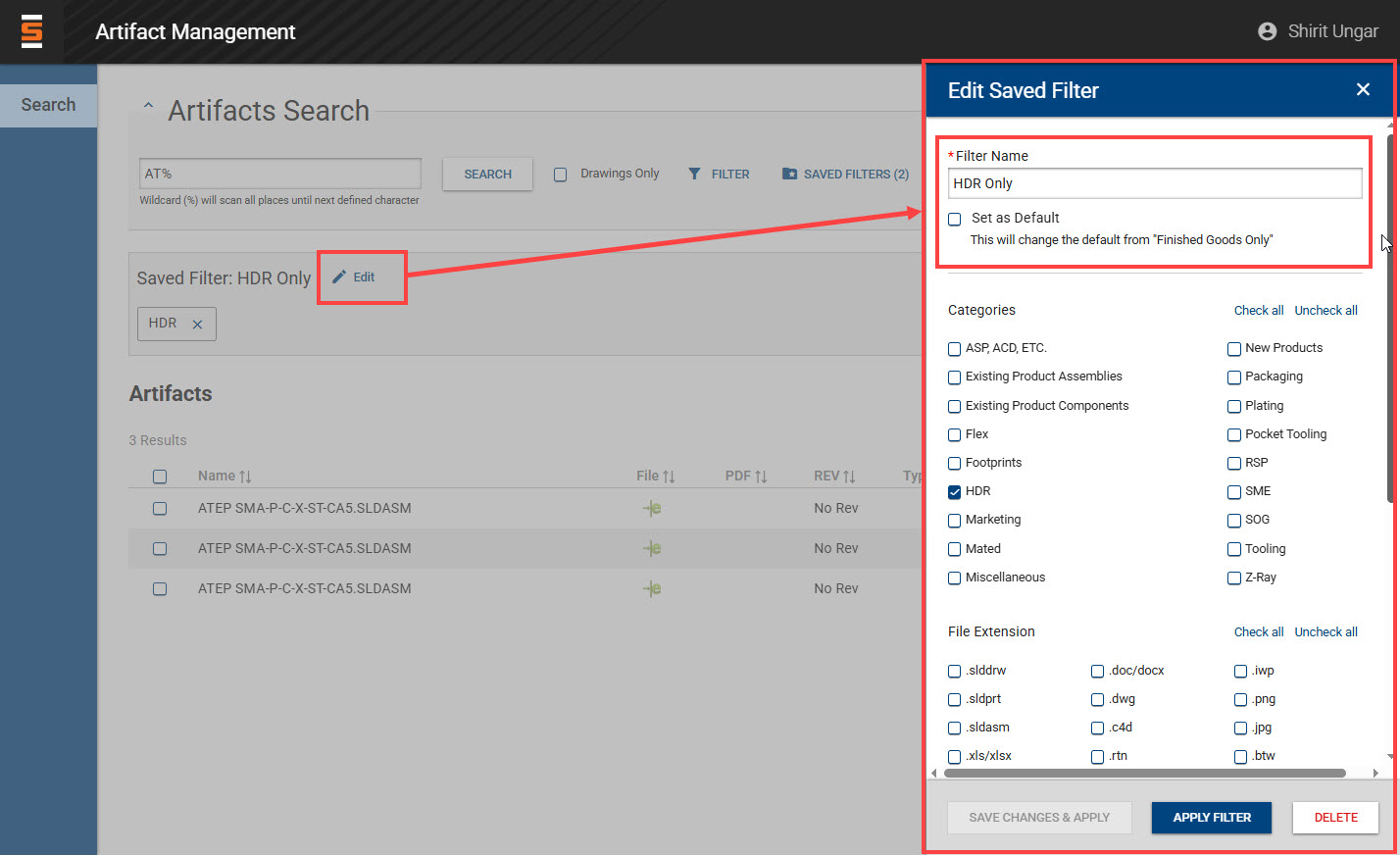
You can edit filters by clicking on the edit button
- You can rename your filter, toggle the default filter checkbox or change your selected filters for that saved filter.
- Click on the Save Changes & Apply button to save your filter changes
- Click on Apply filter if you want to display different filters but not save it to the saved filter
- Click on delete to remove the saved filter
-
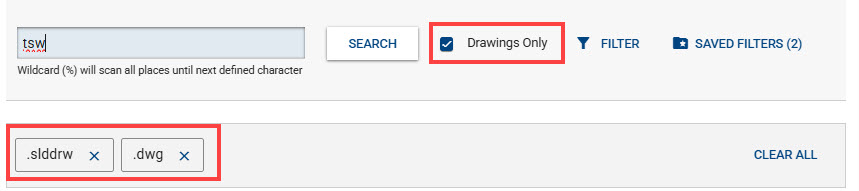
If you want to quickly filter on SLDDRW and DWG drawing files, check the "Drawings Only" checkbox
Artifact Options
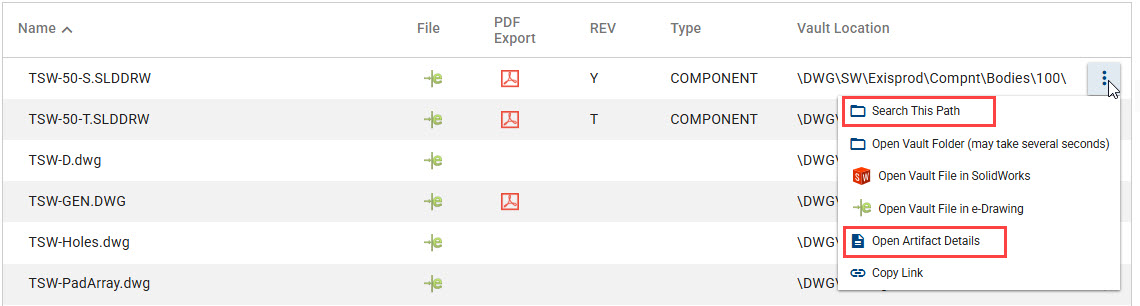
- The 3 dot menu to the right of a given file in the search results gives you a few new options:
- You can select "Search This Path" which will open up a new tab and display all files that have the same file path as the selected artifact
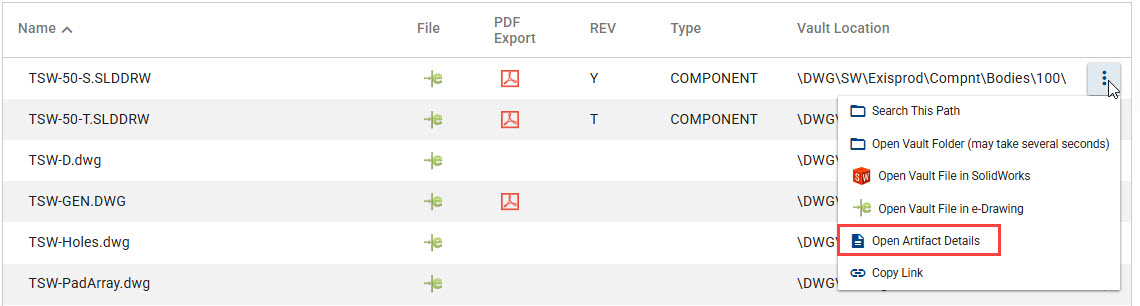
- You can select "Open Artifact Details" which will open a new page where you can view the metadata and file relationships for the given artifact
Sharing Artifacts
-
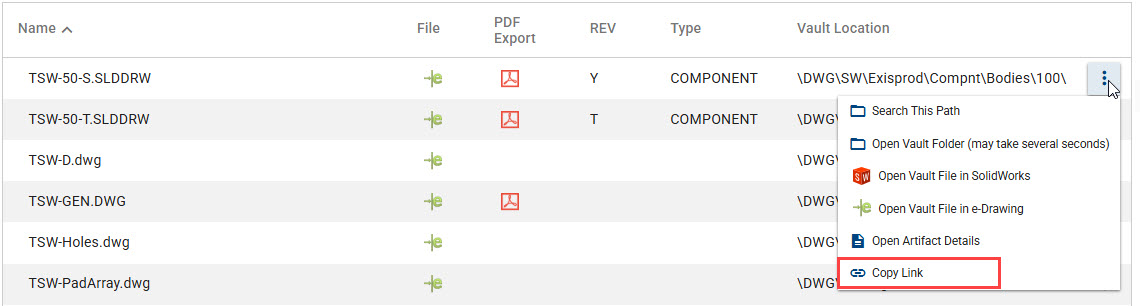
If you want to share the file with another Samtec user, you can select "Copy Link" This will copy the link of the selected file so you can paste and share with other users.
- If the file has a PDF copy, it will copy the link to the PDF. If there is no PDF copy, it will provide a link to the original file.
- When a user clicks on the link, they will need to log in with their Windows username and password and the file should automatically open
- Note: This link will always refer to the most recent approved revision of the file.
-
If you want to share the specific current revision of an artifact, you can email the file
- You can multi-select files and click on the email button which will open an email to send the files to any recipient.
- Note: If you need to send multiple files that are found using different search criteria, copy and paste the zipped files from each email into a single email
- Note: These files will be the current revision and may become out of date if a new revision is approved.

Engineer How-to
Editing metadata and artifact relationships
- You can edit metadata for artifacts in 2 ways
-
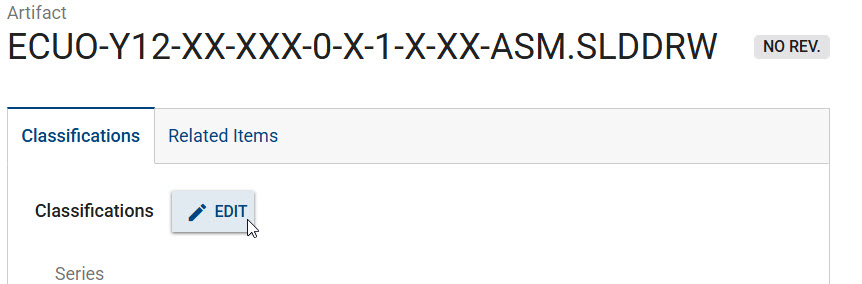
You can edit metadata for a single file by selecting the "Open Artifact Details" option in the 3 button menu
- On the Classifications tab, click on the edit button and then you can edit the metadata and click the save button
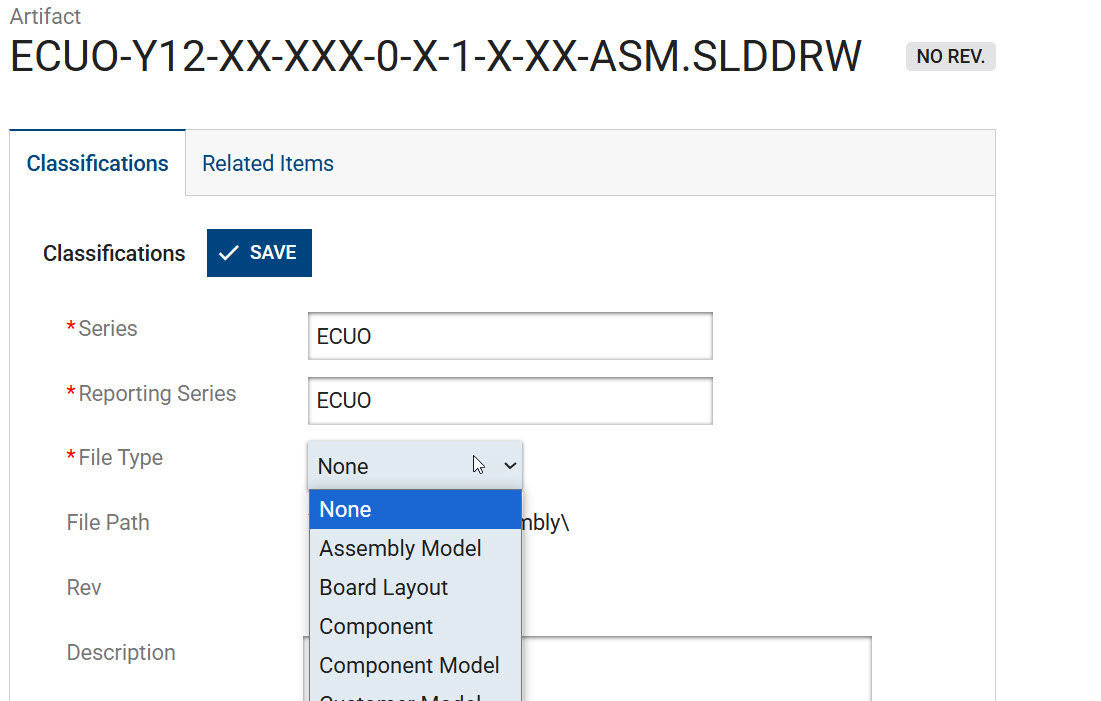
- Note: Additional metadata will be available as it is added to the data model and populated for most artifacts once it is prioritized
-
You can edit metadata in the search results grid by selecting "Edit Mode" toggle. You can also view all metadata fields by selecting the "Show all data" toggle

- You will be able to edit each metadata field for each file in the search results directly in the grid, including related files
- Most fields will automatically save once you select away from the metadata box for a given artifact
- Some fields will have search ahead capability and allow you to select the value for the metadata
- If a value is already selected, nulls will not be available and a value must be inputted. If a value is null to begin with, it can continue to be null and will not be required to save and continue.
-
Creating artifact relationships
- Click on the Related Items tab in the artifacts details or use the edit view in the search results to view and select other related artifacts
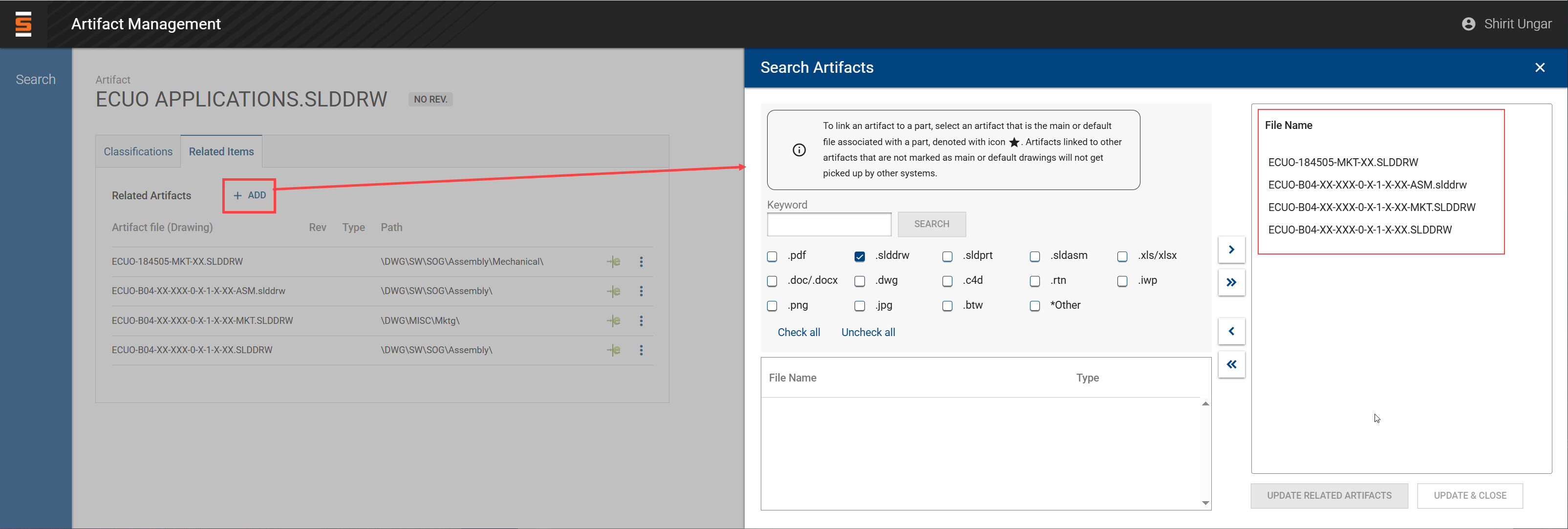

- To add a new related artifact, click the Add button and search and select the artifacts you want to relate
- Important: If you want other systems to be use the relationship, you must relate an artifact to a main or default artifact. These are artifacts, typically drawings, that are linked directly to one or more parts through Item Master. These artifacts will be denoted with a start icon. You can still create relationships to any artifact, but other systems will not be able to consume that relationship at this time.
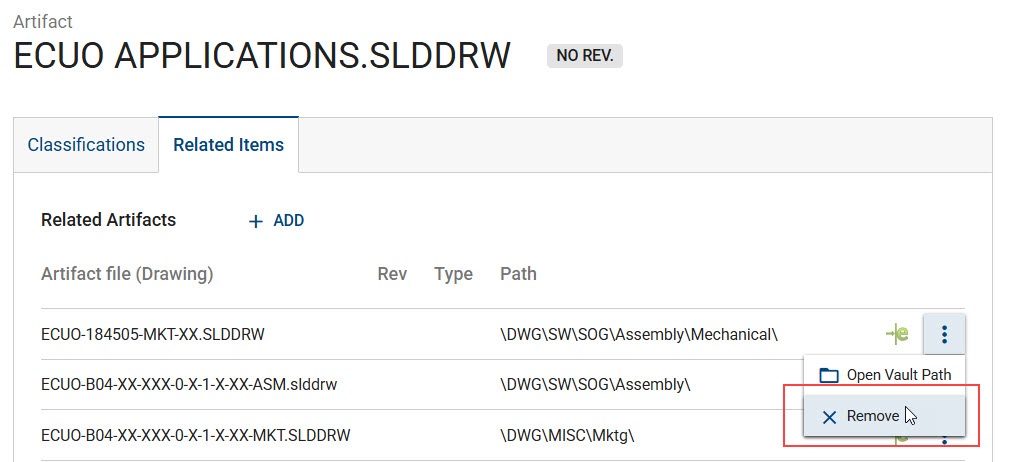
- To remove a related artifact, click on the 3 dot menu, and select Remove
Troubleshooting
- If you are unable to open files, you likely have an issue with your Vault assistant application not running. If this is the case, you will likely see an error in the top of the application. Please see the Vault Assistant troubleshooting page. Typical resolution is to just search for Vault Assistant in your Windows task bar, select it to get it running and then refresh your page. Search the Help page for any other troubleshooting
- If you try to open a file and get an error that the file is corrupt, then go into your local storage "C:\Users%USERPROFILE%\AppData\Local\Samtec.Plm.VaultAssistant" and delete the latest log file. Then try to open the file again.
- In order to keep your laptop from overflowing with files, we clean up your local storage every week. Do not use the local Vault Assistant storage to retrieve files. Always open files directly from search results.
- If a file is not showing up in Artifact Management search, there's a couple troubleshooting steps:
- If you have access to the Vault, make sure that the file is set to approved state and the PDF has been saved within 10 minutes of the original file.
- Make sure that the file and path in the Vault match the file name and path in the latest Change Management change order for that file. You can search in Change Management by keyword.
- If you change the file name in the Vault without updating it in Change Management, the file wouldn't be searchable with the latest version in Artifact Management.
Recently Released
- Go-live (June 16, 2025)
- Added button to copy file path for drawing mass updates (Nov 13, 2025)
- Added button to look at the change order history of an artifact (Feb 27, 2026)