PLM's
Apps:
Change Management Artifact Management Like Part Generator Bill of Material & Routing Series ManagementThis page gives a quick overview for drafters.
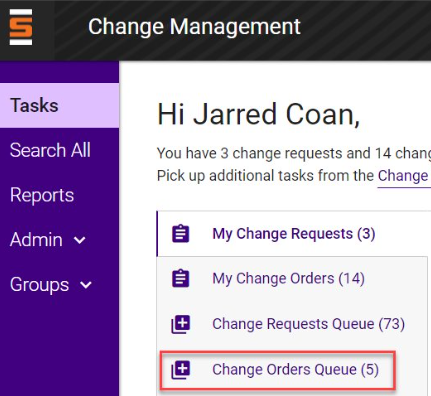
You'll be able to edit information for all files associated with the order. One order can contain multiple artifacts.

You'll need to then check in your file(s) and submit for approval. There is no admin close step. Admin close is automated, but you must make sure all your files, including Marketing drawings are checked in before you submit.

Since everything starts from a request for scalability reasons, there's a few easy steps to immediately get to work.
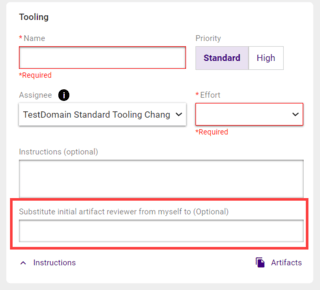
When creating a request, select your domain and assign the request to yourself
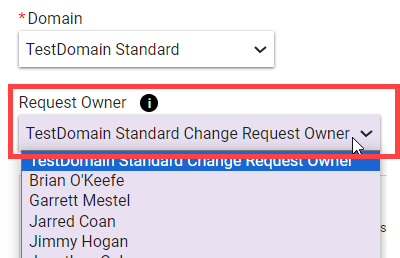
Fill out the work plan and submit.

Tooling requests should require request approval so you'll see the orders where you can directly pick up the order to start work.
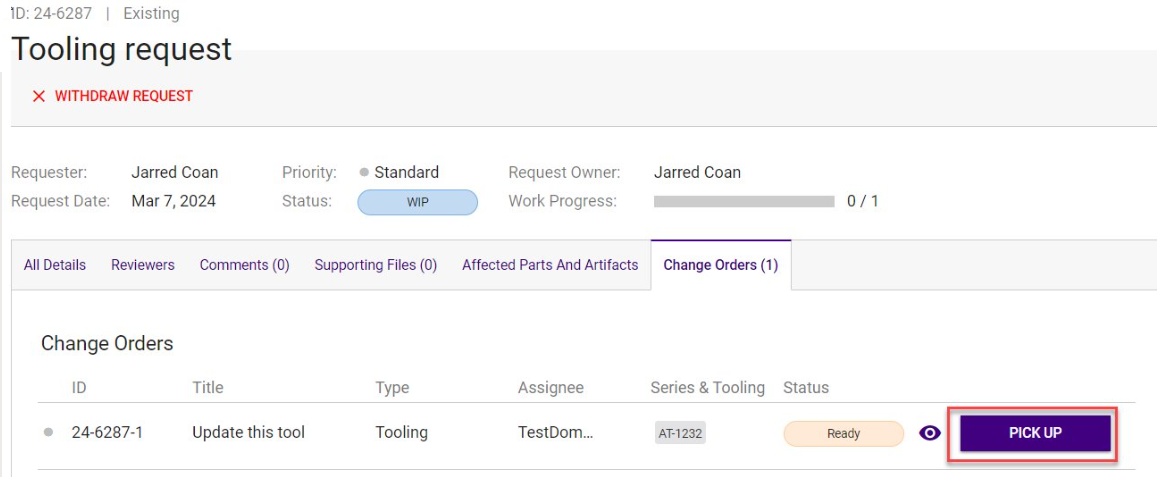
You will be the first reviewer of the product or tooling order and get a notification when it's submitted
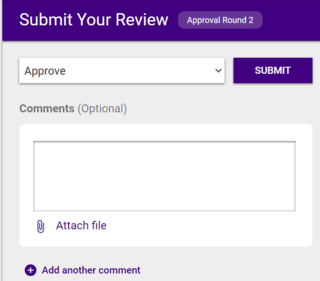
You can approve or send back with a comment
The drafter will then be able to make changes and resubmit for the next approval round
Once you approve, it will go to the product or tooling order approval group for that domain
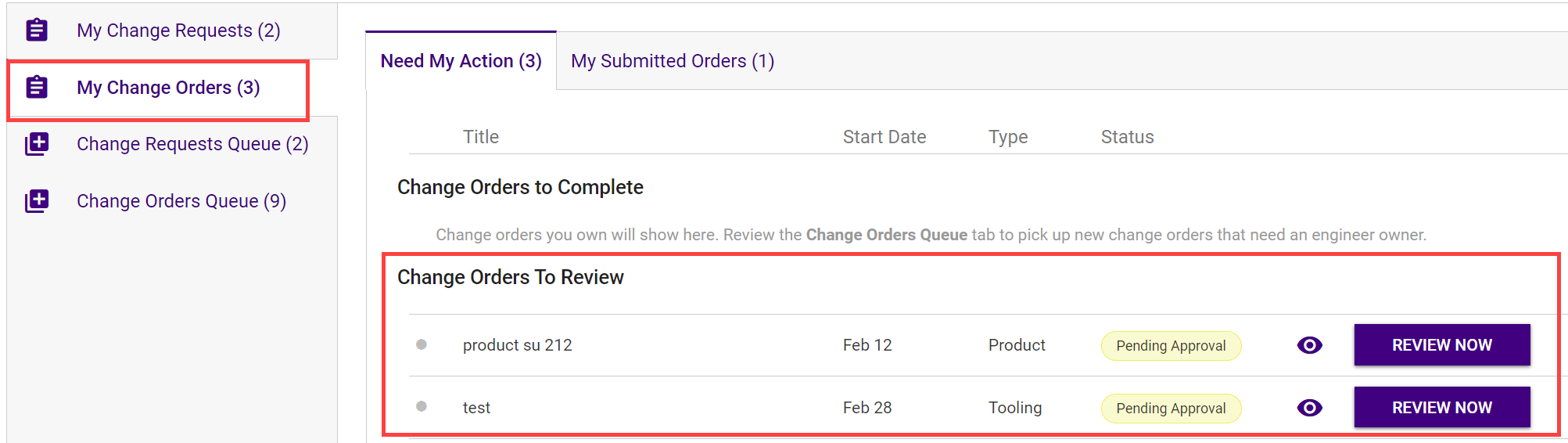
You will receive an email notification once the request owner has approved. You can also see all your pending order approvals in the Change Orders to Review section on My Change Orders on the My Tasks homepage.
You can see the approval thresholds for product and tooling orders on your domain product or tooling order approval group page.
You can approve or send back with comments. Comments are required when rejecting an order.
You can view who has approved on the Reviewers tab of the order.
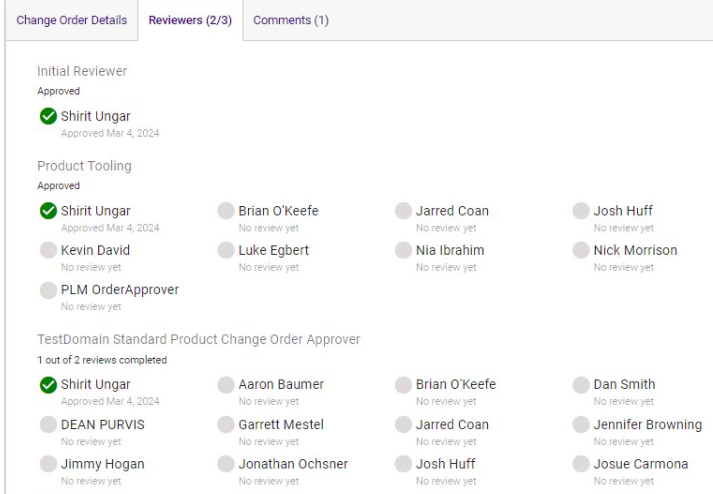
You only must approve once. If you are in multiple groups that must approve, your approval will count for all the groups you are in.
The initial reviewer (request owner) approves first. We are working on an enhancement so that if the initial reviewer = order owner, it is auto approved.
If you send an order back, the initial reviewer is notified and will be required to mark applied changes or submit a reply for each comment before they can resubmit.
Once the approval threshold is met and there are no other product, tooling, firmware, or SIG artifact orders still open, the system will automatically run admin close
| ECN | Change Management |
|---|---|
| Could start with an ECR, CAD or ECN | Everything must start from a request. Some requests can be auto approved and worked on immediately, based on domain configuration. Tooling will have a way to quickly go from request to work in just a few clicks. |
| Admin close is a step at the end performed by drafter | Admin close is automated once the last product, tooling, SIG or firmware order is approved or completed. This way everything gets admin closed together and then systems can be updated after. |
| You must select a reason and groups to route your ECN | There are order approval groups for product and tooling orders by domain. Functional groups can also be selected so that you can pinpoint specific departments that need to approve. |
| You can select FYI groups to notify others of the ECN | All FYI notifications will be done through Power BI Subscriptions and must be set up by user for full customization. |
| ECN can throw weird errors that seem like gibberish | Change Management has cleaned most of that up, so it gives a better user experience while scaling to all product lines |
| ECN is old and doesn't play well with any other systems | Change Management has the newest tech and is built on a platform that will support all the future PLM initiates to integrate other systems. It's faster, more scalable and easier to work with. |
| You could only do one file per ECN | Change Management allows you to include everything that needs to change in a single request. Multiple files, multiple orders and even general orders can be added to fill out the request. |
| You manually mark updated files as approved in admin close step | Since admin close is automated, it will mark all artifacts in the order as approved. However, if you updated files NOT on order, you will receive an email when your order is approved reminding you to update all other files. |
| Requests and revisions for new files had issues | Change Management has automated revisions based on product vs tooling files and we have set it up so that we can eventually control file naming and next number generation that is coming soon. |