Bill of Material Management
Viewing Bill of Material
The bill of material table allows you to view a thorough view of all the materials of the part you are viewing, and each of these material's bill of material.
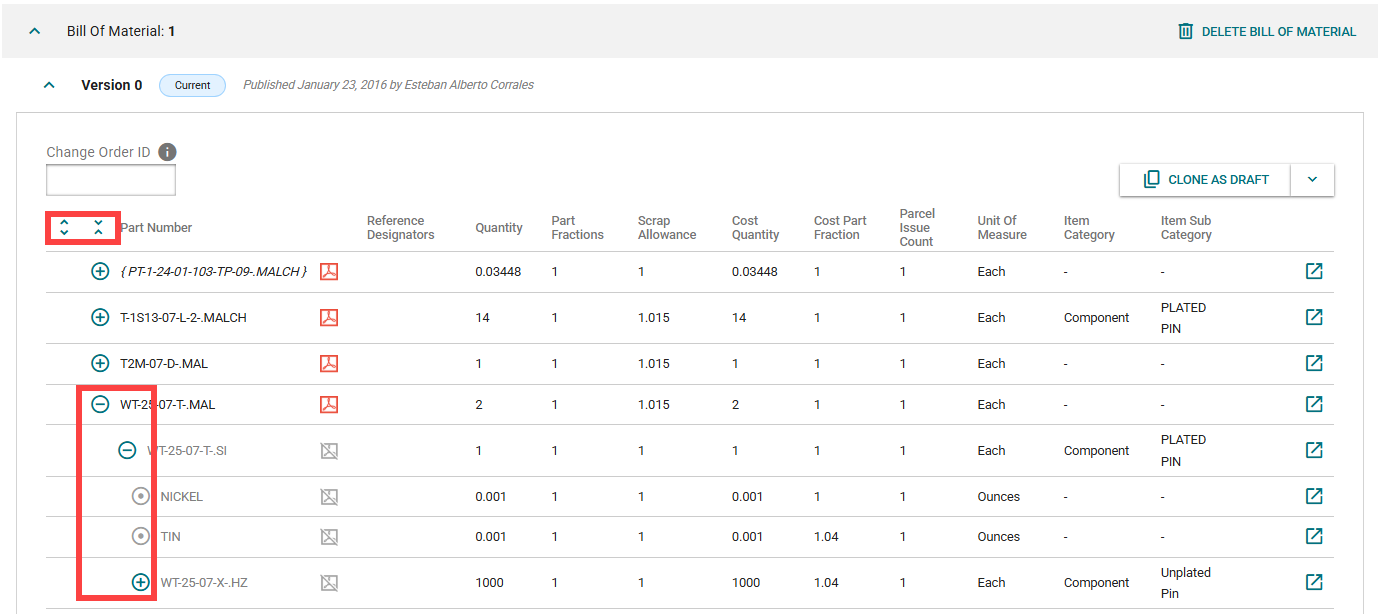
You can expand each material:
- Individually opening each one by clicking the +/- sign.
- Using the Expand All / Collapse All buttons.
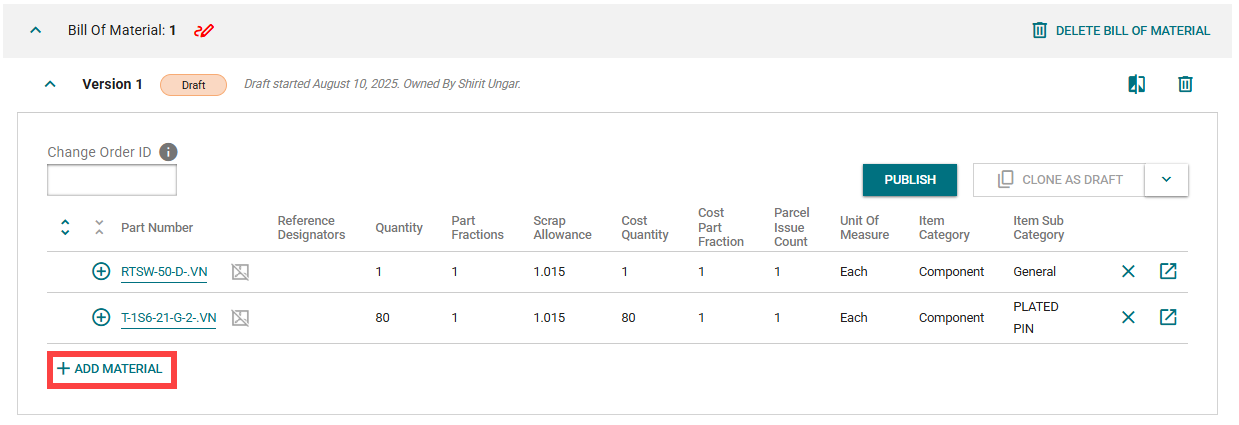
Current version is to view only and cannot be edited directly. If you need to make changes, you will need to click Clone as Draft and make the changes in the draft version and then publish.
For details, scroll down to the Editing Bill of Materials.
Creating a New Bill of Material
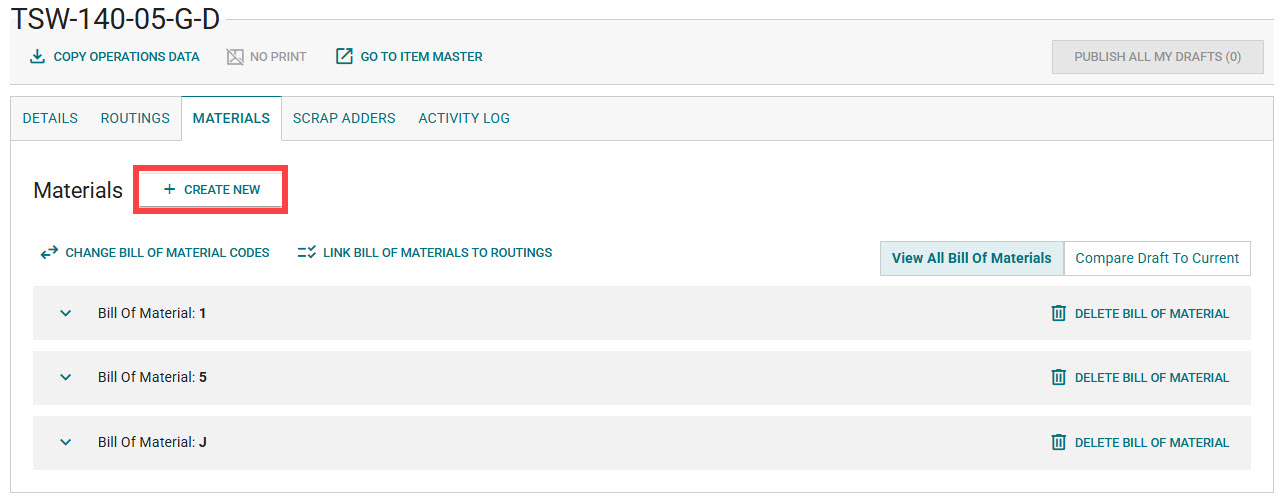
There are two methods to create a new bill of material:
- Using the Create New button.
- Cloning from an existing bill of material.
Editing a Bill of Material (Must Be in Draft State)
The bill of material code automatically saves the draft with each change.
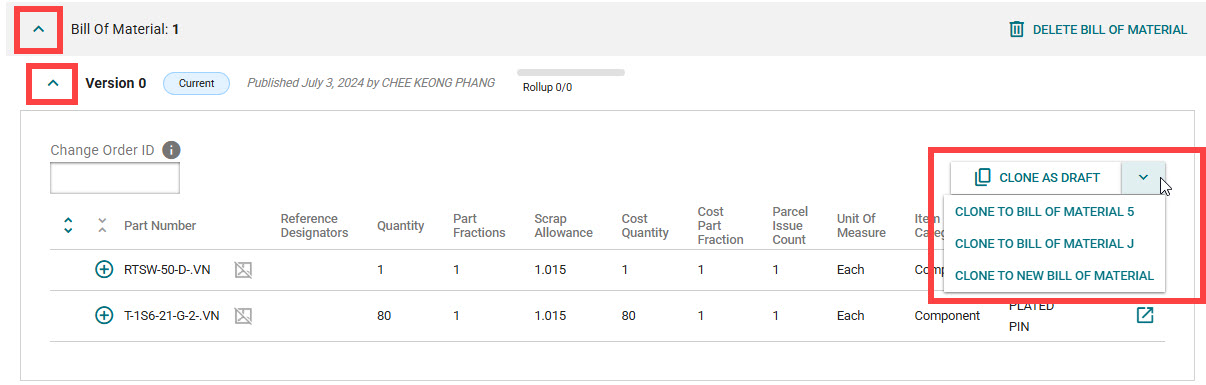
To edit the bill of material, expand the current version and select:
- Click on Clone as Draft to edit the current bill of material code.
- To copy a particular bill of material code as a draft to another existing bill of material code, click Clone to Bill of Material code.
- Example: Clicking Clone to Bill of Material 2 will copy bill of material code 1 as a draft to bill of material code 2. The user can then edit the draft bill of material code 2 details and publish as needed.
Edit Change Order ID
- Change Order ID can be edited while bill of material code is in current or draft state.
- System validates the Change Order ID exists in Change Management.
- Change Order ID hyperlinks to change order in Change Management.

Edit Bill of Material
Comparing Bill of Materials
You can compare between a draft to a current version if both exist for a bill of material code.
There are two ways to get to the comparison screen:
- When both versions exist, an icon will show, and you can click on it to see the comparison.
- Click the button Compare Draft to Current to get to the comparison screen and see which codes are available to compare.
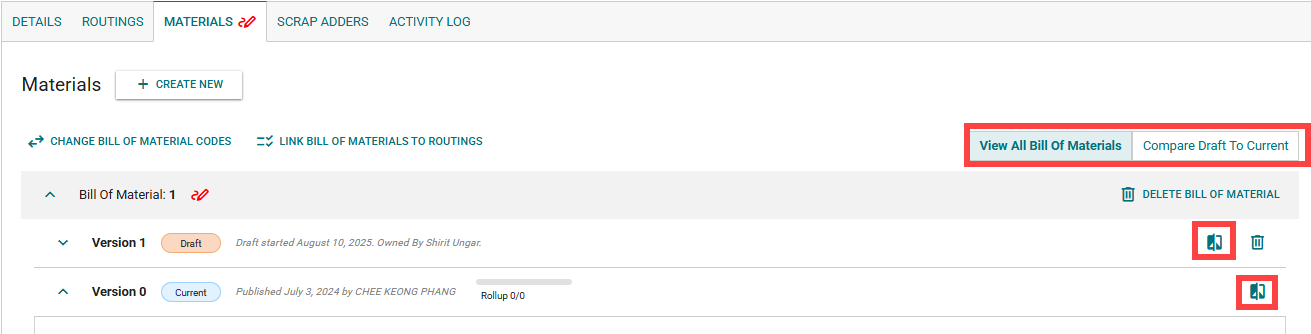
- Within the Comparison Screen a user can select which routing code they want to view the comparison for.

- To return to the regular bill of material screen, click on the View All Bill of Materials button.
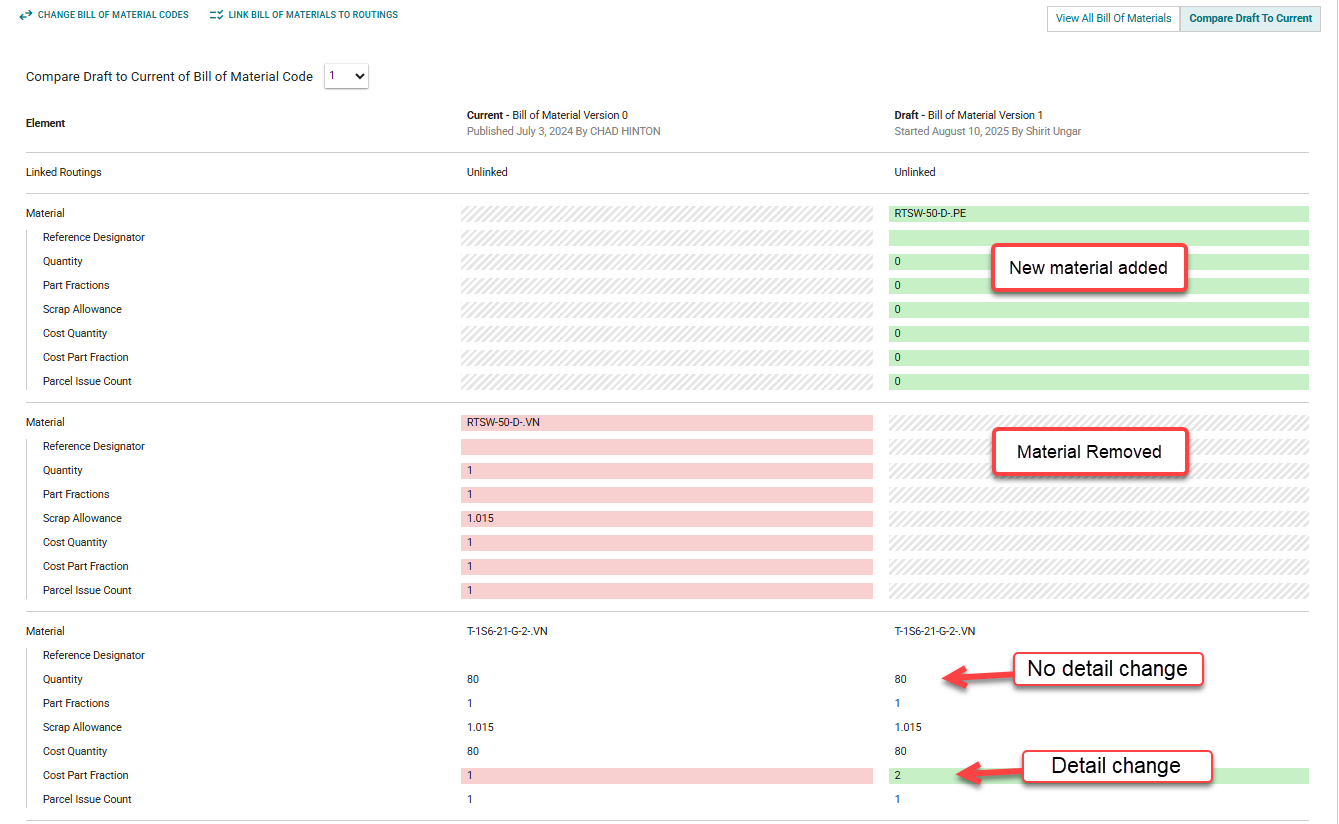
- When comparing, you can see the red/green/gray stripe marks to identify where things have changed.
Delete a Bill of Material Code
- Click Delete Bill of Material.

- A confirmation modal will show, click Delete to proceed.
- To view deleted Bill of Materials, click Show Deleted Bill Of Materials. A list of the deleted bill of materials will show, and you can open each one of them to see the details and clone to draft if needed.


Changing Multiple Bill of Material Codes
Use the Change Bill of Material Codes feature to update multiple codes simultaneously.
- Click on Change Bill of Material Codes.
- Input the new Bill of Material Codes.
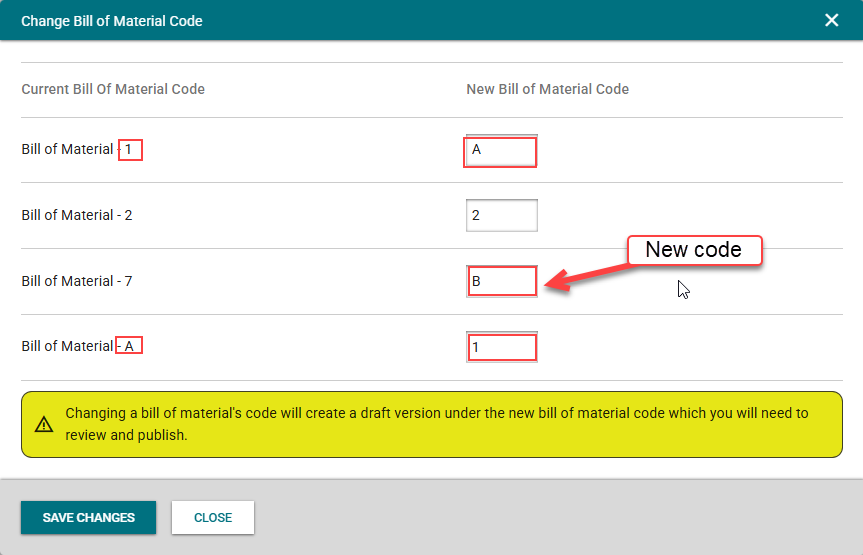
- Click Save Changes — drafts for routing code changes will be created.
- If a new code was added that is not on the page already, a new draft will be created, and the existing code on the page will be Pending Delete. Once the new code is published, the old one will be deleted.
- Publish drafts.
Publishing
A draft can be updated continuously until published. Once published, the bill of material version goes live in production.
You can publish in 2 ways:
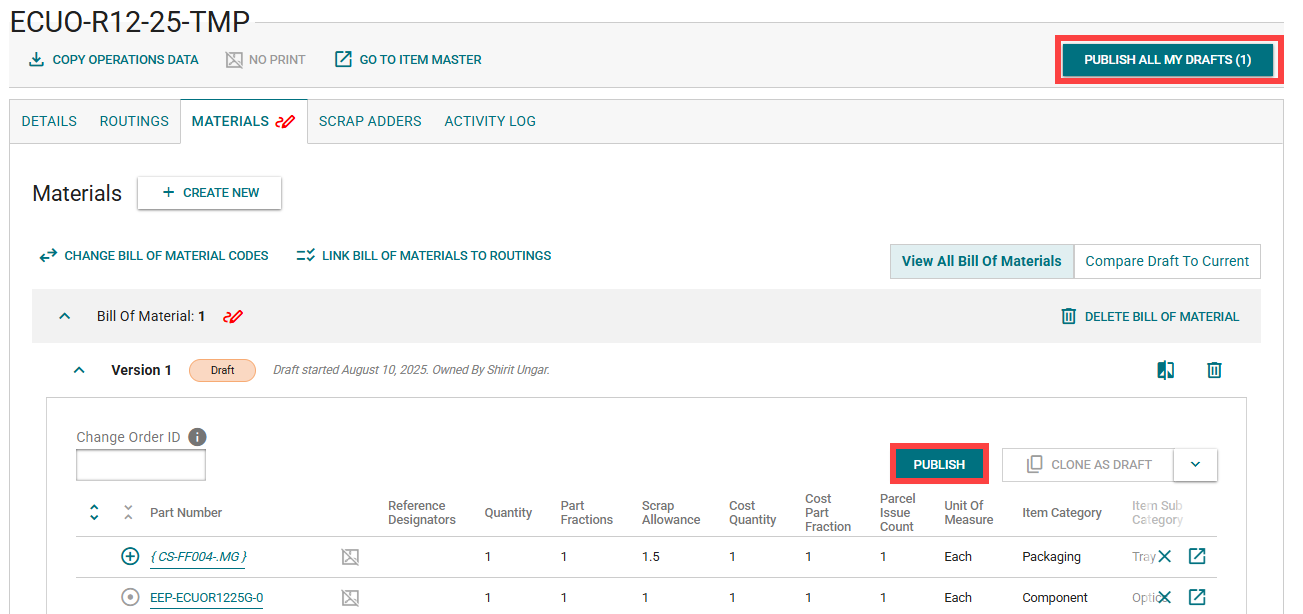
- Click the Publish button within the bill of material code draft.
- Click Publish All My Drafts which will publish both Bill of Material and Routing drafts owned by you.
Open Orders
By default, open orders will be updated upon publication unless this option is deselected.
There are two ways to view current open orders:
-
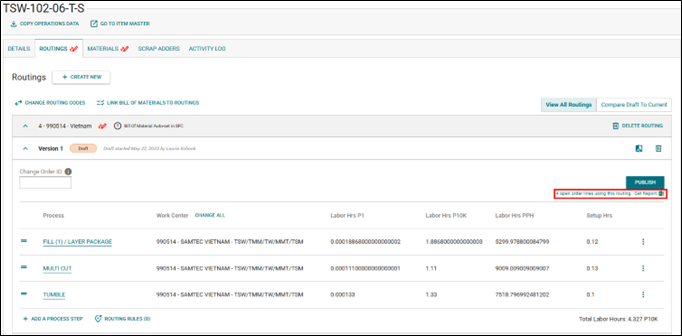
If open orders exist for the part being published, an Excel document will be linked under the Publish button.
-
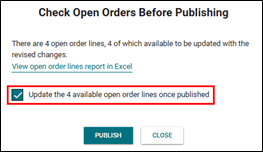
Upon clicking Publish, a modal will appear showing the number of open orders and the count of those eligible for updates. This modal will also contain a link to the Excel document.
-
To prevent updating open orders on Publish, uncheck this box.
-
Open Orders Report: